
How Huusholli works
This is the Huusholli handbook for use in the browser. The same family also shows on a phone or tablet when added to the home screen, and the app store apps are in testing.
Glossary
- Home Nest
- The front page, which shows the family's status: who has chores in the mix, what is bubbling and what has been done. The top bar switches between Me and Whole family.
- Busy Board
- The board where chores move from column to column: Simmering, In the Mix, Bubbling and Served. The calendar opens from the same view.
- Chore
- One household task as a picture card: name, picture, who does it and the day. A chore can have a short description, which Tilu reads aloud to the youngest.
- Plan
- A calendar entry that is not a chore: a hobby, a work trip, a sick day, a reward day or the family huddle. Some plans block turns for that day.
- Flurry
- The family's shared period, usually a week. A Flurry has a start, an end, a reward and, at the end, a Think Break.
- Regulars
- Repeating chores and plans from which a new Flurry is built ready-made.
- Nest Wall
- The whole family's shared message wall. Alongside it are one-to-one conversations.
- Tilu
- Huusholli's helper, which tells you in every view what you can do there and reads the instructions aloud.
- Family Key
- The key the family's data is encrypted with. It is shown once when the family is created, and it restores the family on a new device. More about privacy and identification.
Getting started
- Open Huusholli in the browser. The first time, the device has no family, and the Home Nest points you to the Family page.
- Create the family. Enter the family's name and your first name. In trial mode the family has five Flurries to use; a licence lifts the limits later.
- Save the Family Key. Huusholli shows the key once. Copy it somewhere safe: it is the only way to restore the family on a new device, and we do not keep a copy.
- Choose a passcode. The family's creator is the parent admin, and the parent admin always has a four-digit passcode. It is asked for when the parent admin's picture is chosen.
- Add the family members. Family › Members: name, role (parent admin, parent, grandparent, child or guest), picture and, for a child, the reading level: not reading yet, reading or adult.
- Connect the other devices. Every member has their own join code, which makes a device theirs. The Shared device row's code connects, say, the kitchen tablet, where everyone picks themselves from a picture.
- Fill in the Regulars and start the first Flurry. Repeating chores and plans are best saved first, so the first Flurry is built from them ready-made.
Tilu comes along: every page has Tilu's button, and during setup Tilu tells you what to do next.
Who is using?
On a shared device Huusholli first asks who is using it and shows the family members as pictures. If a member has a passcode or a picture password, it is asked for after their picture is chosen. A personal device remembers its user and does not ask. The top bar's user button switches the user and opens the settings. The role shows as a colour around the picture, not as text.
The Busy Board for adults
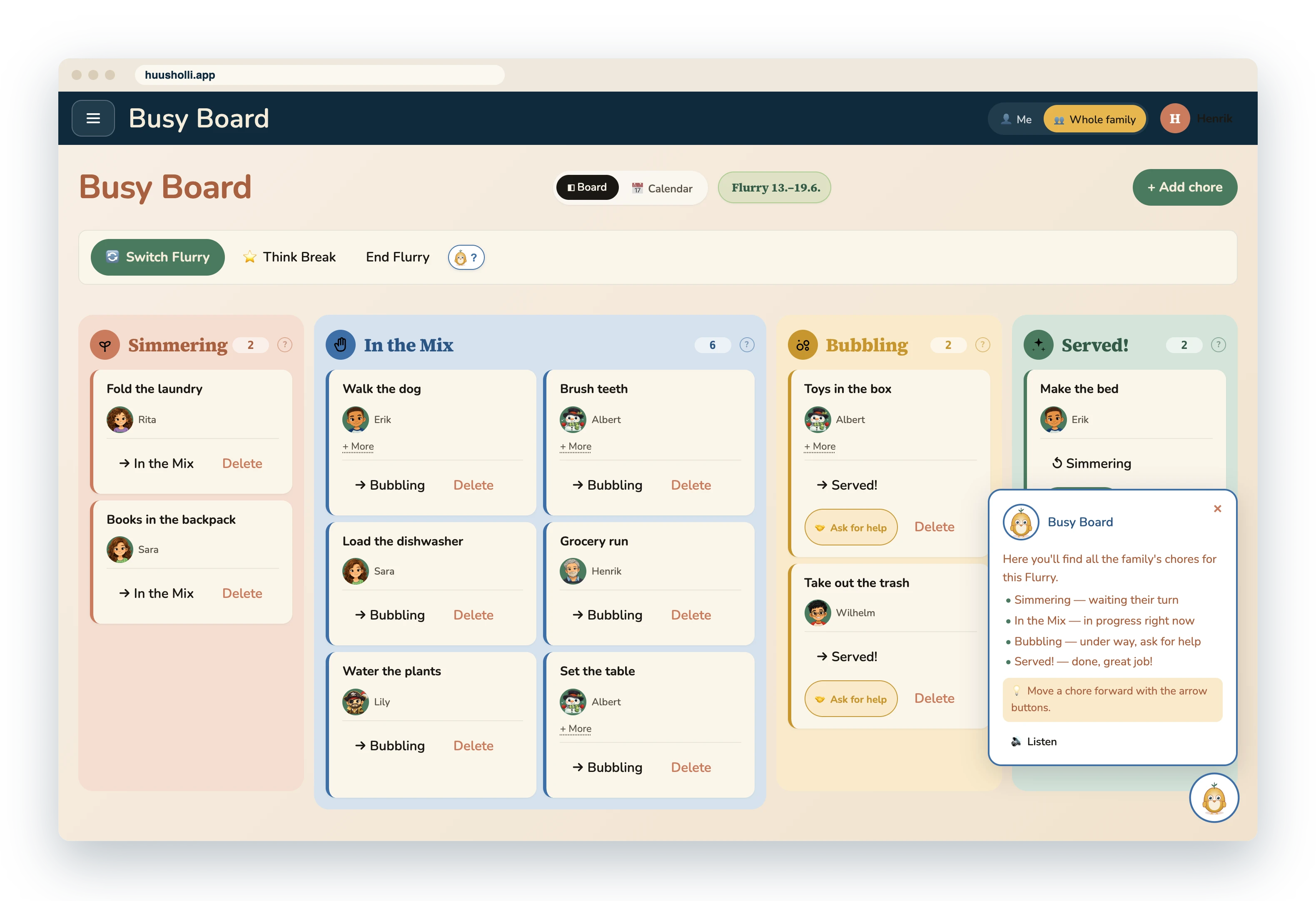
The Busy Board is four columns. Simmering are chores that have no day or doer yet. In the Mix is meant to be done now. Bubbling has been started, and Served is done. Cards are moved by dragging or from the card's buttons. The top bar's Me and Whole family choose whether you see your own or everyone's chores.
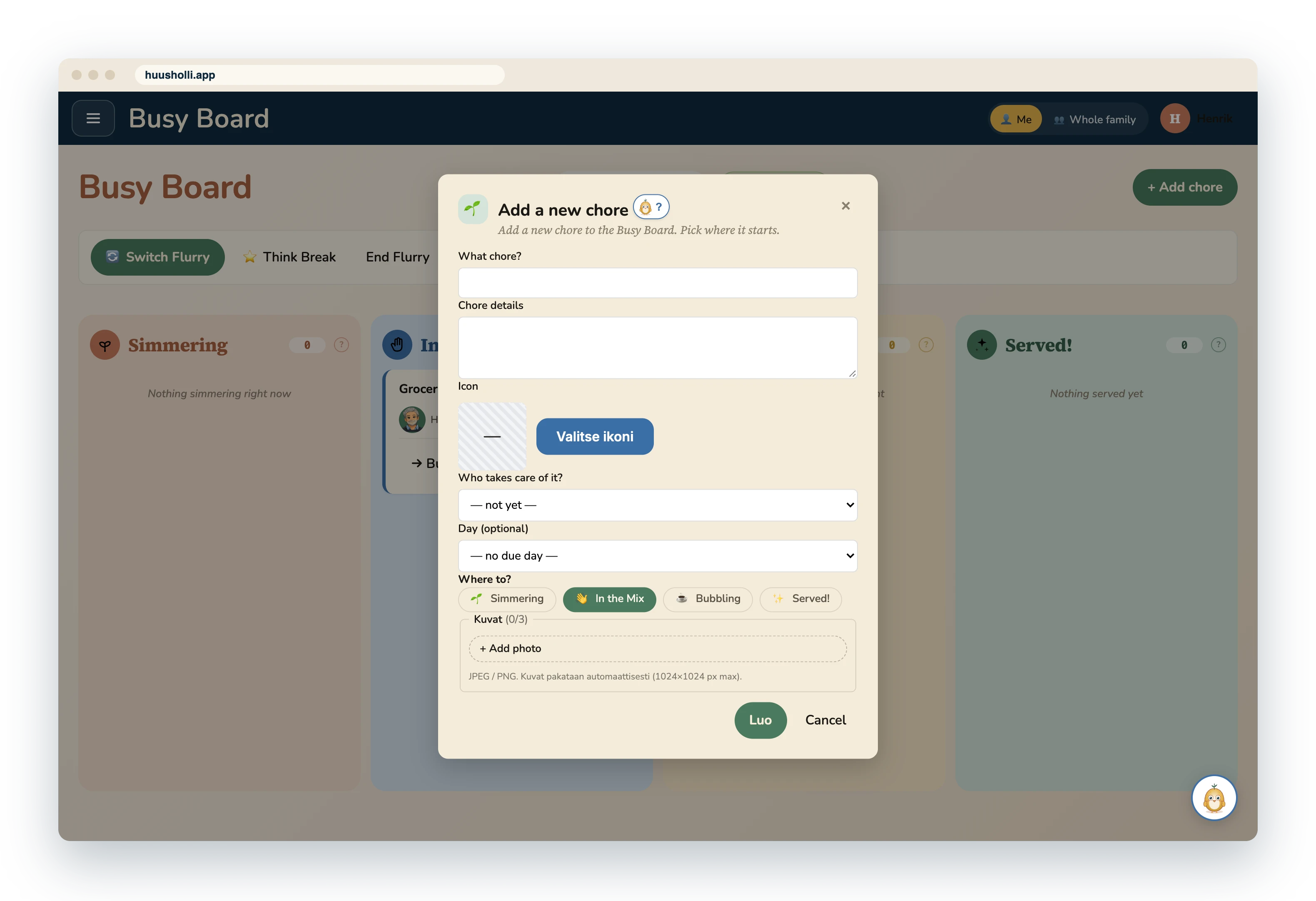
Add chore opens a form:
- Name and description. Write the description so that it works read aloud: the youngest hears it from Tilu.
- Picture. Choose picture opens a catalogue with hundreds of household pictures. Search by word or browse.
- Doer and day. You can leave both empty, and the chore waits in Simmering. Chores that come from Regulars get their doer from the turn rotation.
On a chore card an adult sees the doer's picture and the day, and can edit or delete the chore. When a child asks for help from a card, the card shows in the adult's Messages as a link.
A reading child's view
A reading child's Busy Board is a list: own chores under the headings In the Mix, Bubbling and Served, the biggest card first. The child starts a chore and marks it done from the card's buttons. Other people's chores do not show, and the child cannot edit or delete chores.
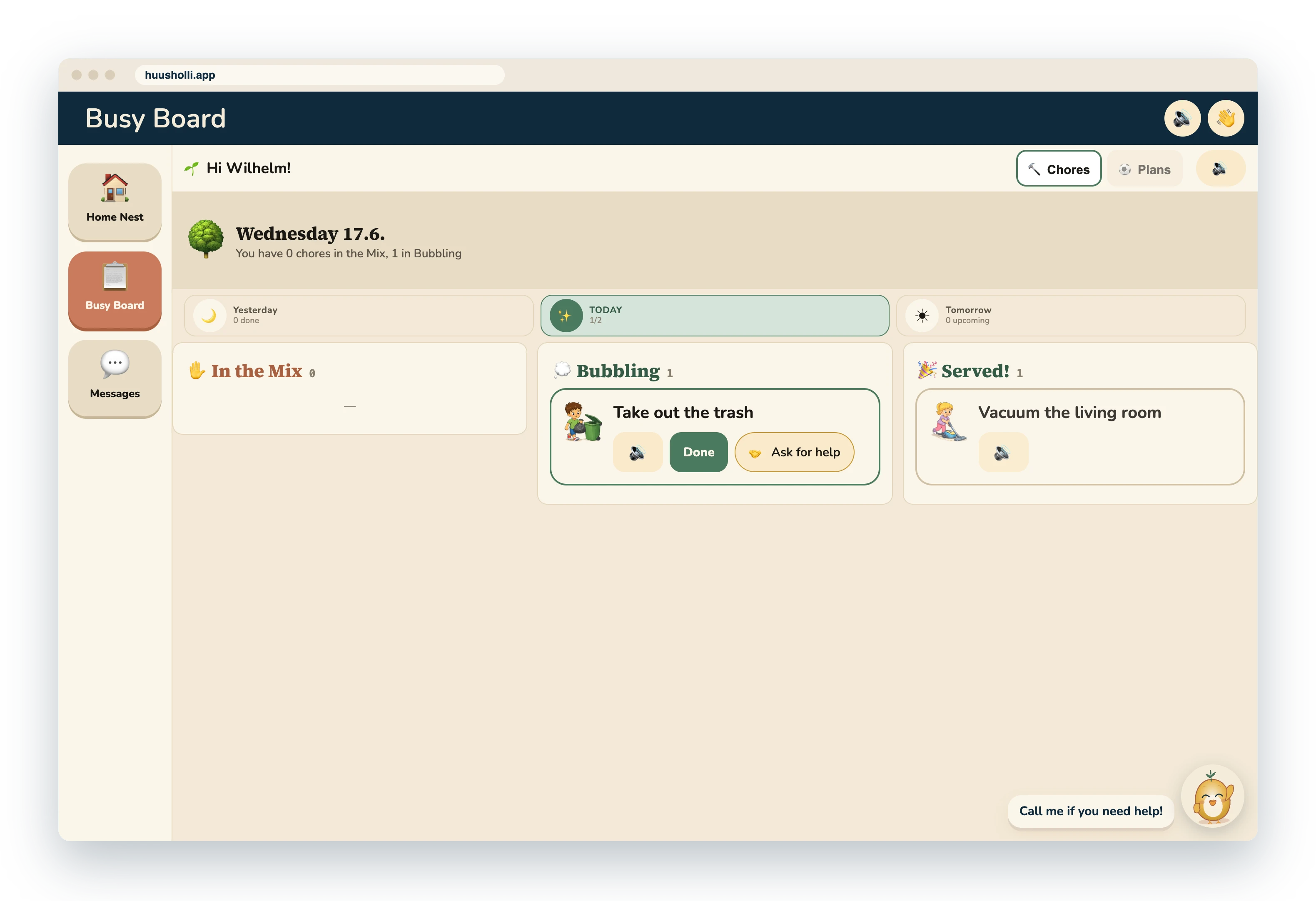
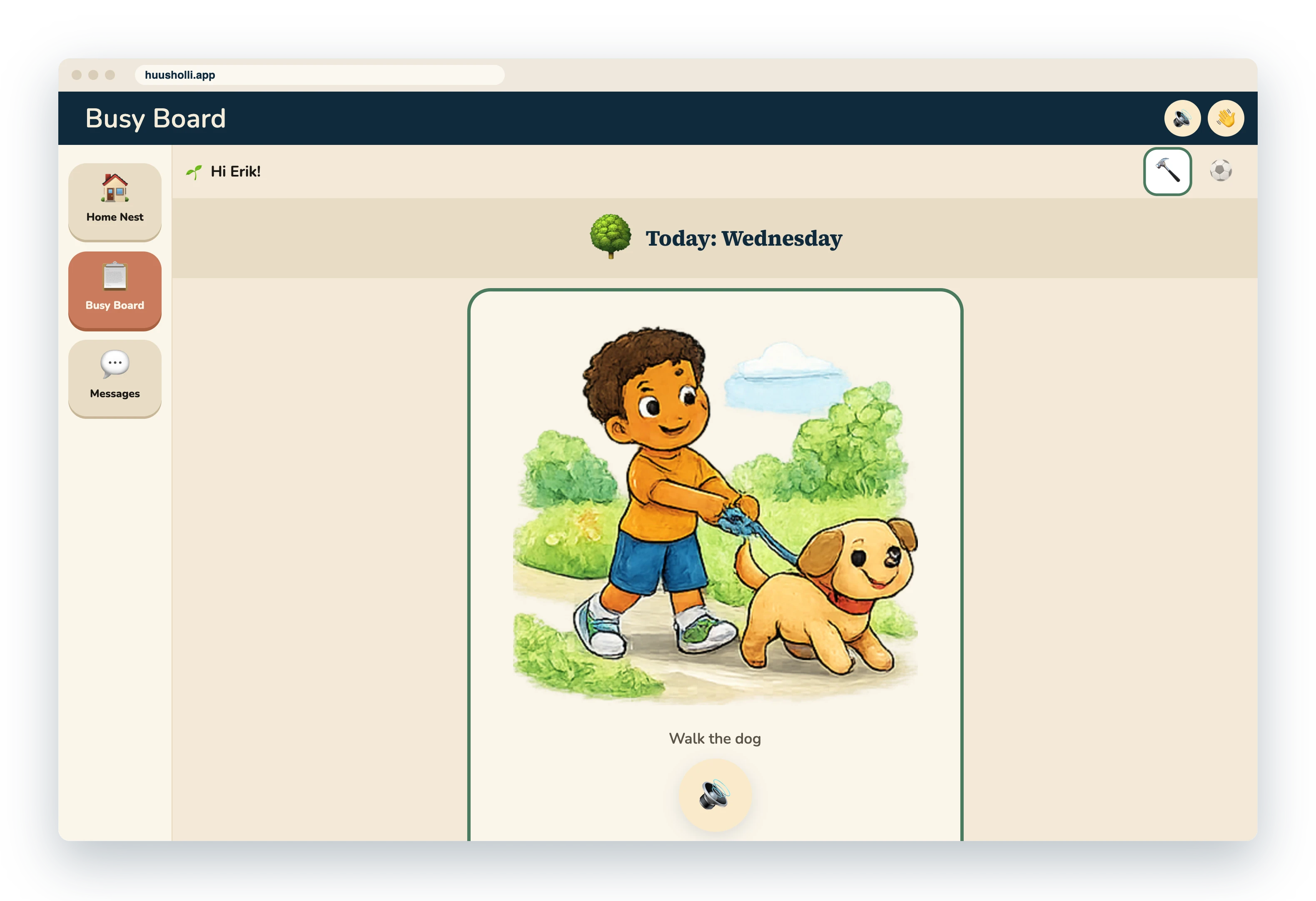
The youngest child's view
For a child who cannot read yet, chores are large picture cards without text. The card's speaker button reads the chore's name and description aloud, Started moves the chore to Bubbling and Done to Served. The handshake asks for help: an adult gets a message with a link to the chore. Tapping the picture cycles the card through the picture, the name and the description.
Calendar and plans
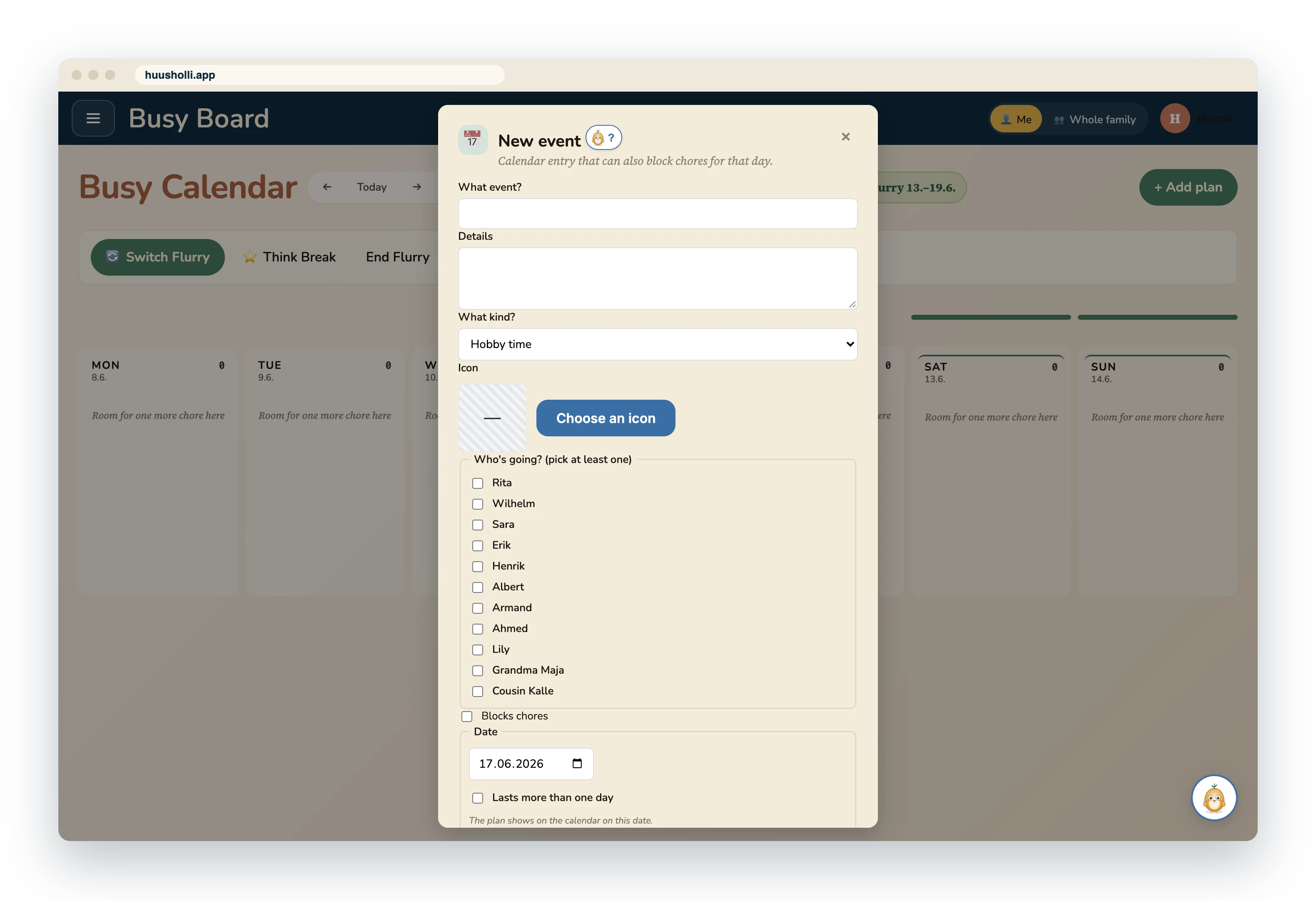
The Busy Board's Calendar shows the week day by day: chores and plans by member. The arrows change the week. Add plan opens a form where you choose the plan's type, who it concerns and which days.
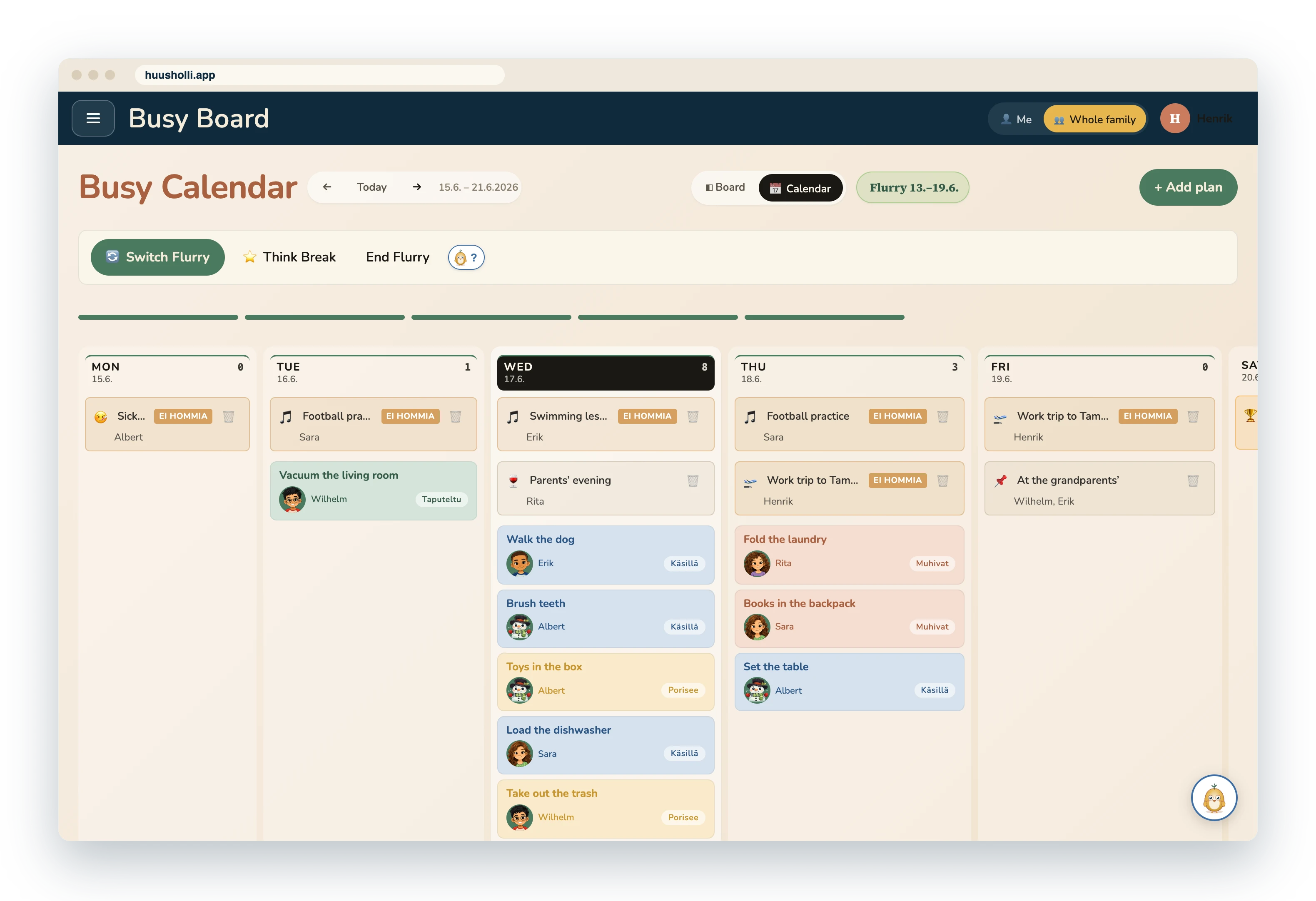
Plan types:
- Hobby time and Work errand: the member is away and gets no turn for that day.
- Sick day: can also be marked from the Home Nest with one press. The sick member's chores are shared among the others.
- Reward Day: the day of the Flurry's reward, visible to everyone.
- Family huddle: the family's shared moment, which shows in everyone's calendar.
- Grown-up stuff and Something else: entries that do not affect turns.
The Flurry
The Flurry shows on the row at the top of the Busy Board: the period's days, the reward and the Flurry's actions. The Flurry's length and changeover day are set in Settings; the usual choice is a week starting on Monday.
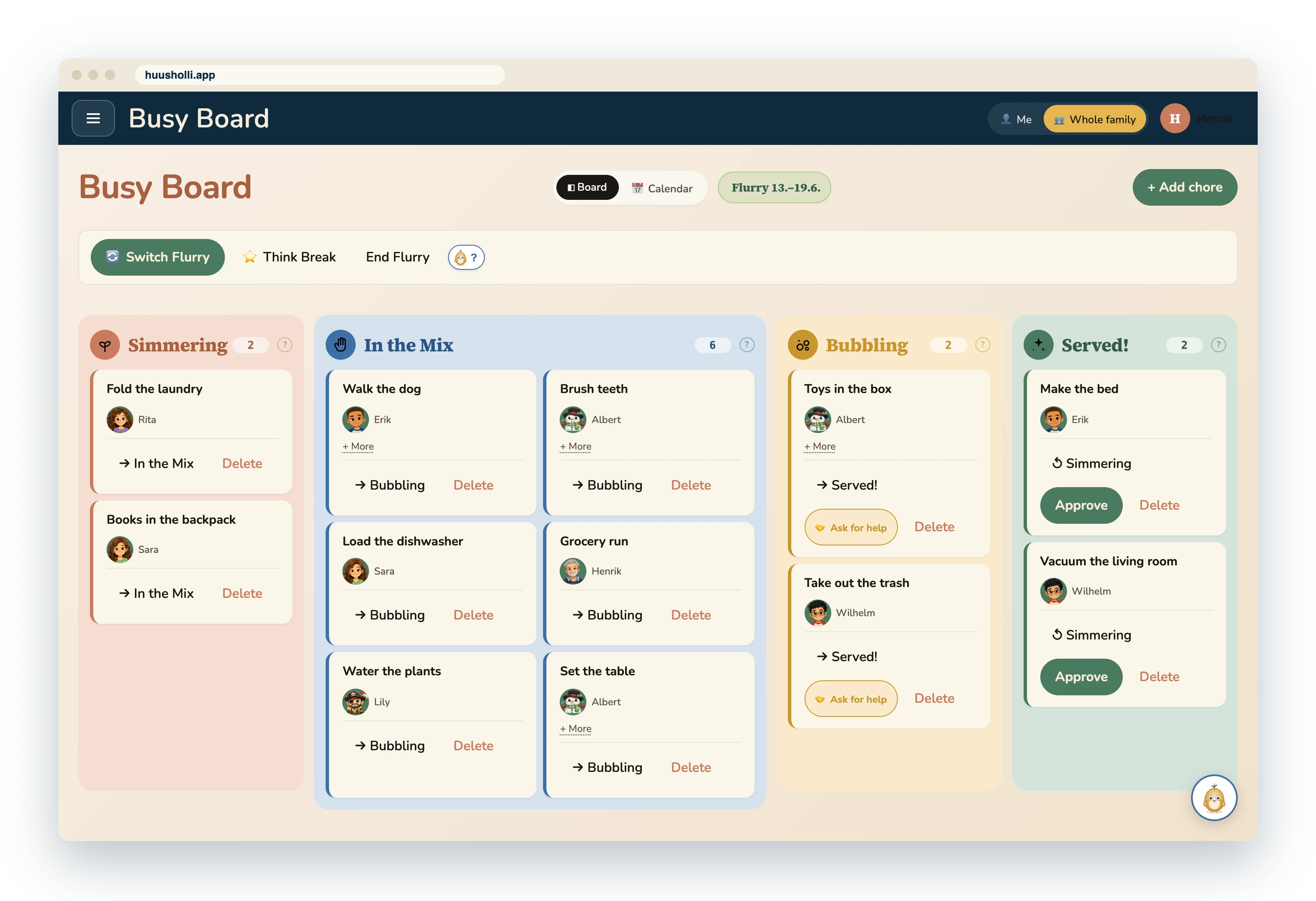
- Starting. The first Flurry is started from the Flurry row. Huusholli creates the chores and plans from the Regulars and shares the chores evenly among those who are around.
- Reward. The family agrees a reward for the Flurry, say a day out or a film night, and gives it a day in the calendar.
- Changeover. When the period ends, the new Flurry is prepared as a draft alongside the old one: the chores can be shared out again and the plans created again as many times as needed. Cancel keeps the current one, Start takes the draft into use.
- Think Break. At the end of the period the family goes through together what got done and what to do differently next time.
Regulars
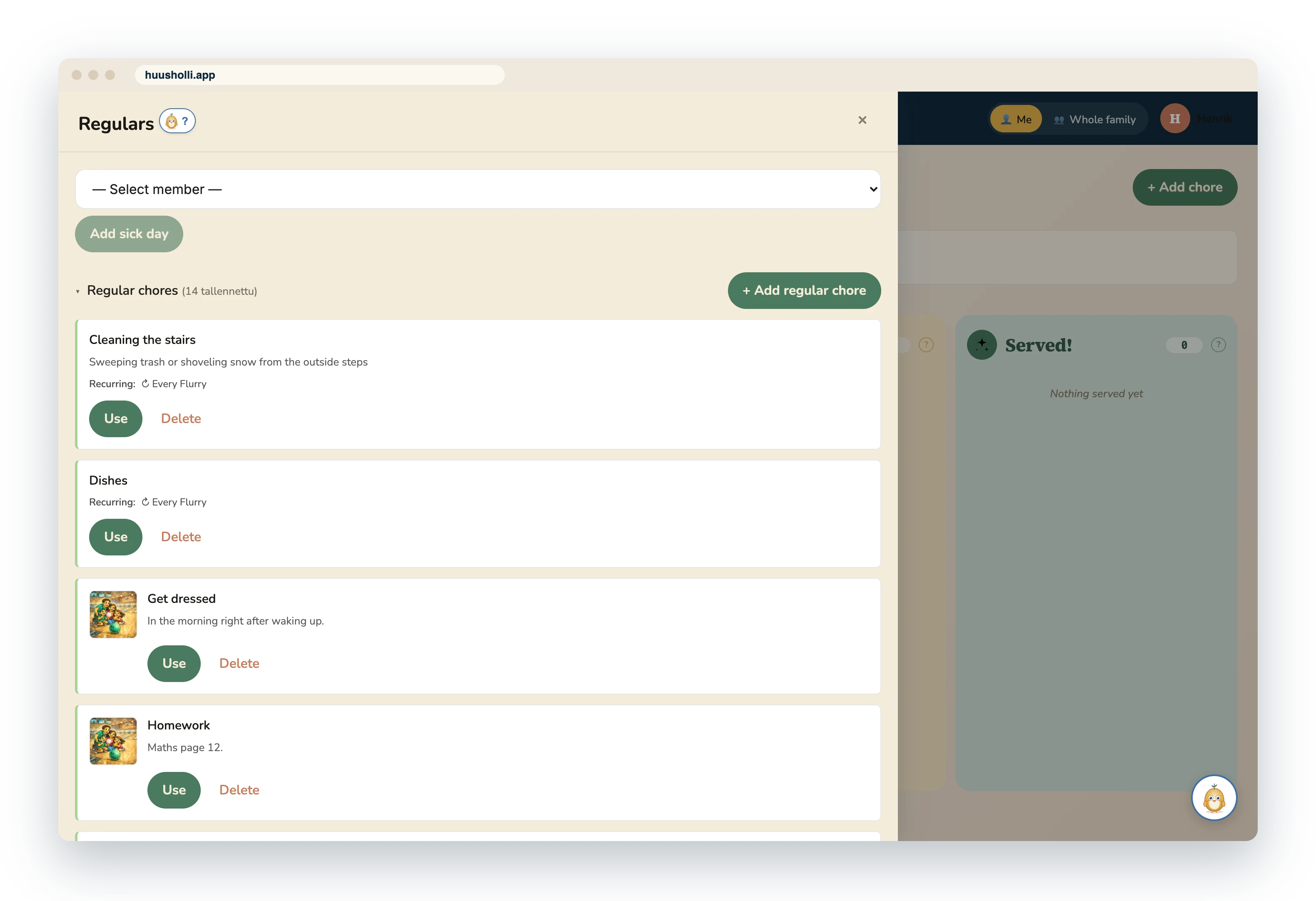
Regulars are repeating chores and plans. A chore gets weekdays and a doer, or a group of doers among whom the turn rotates. An plan gets a type, members and weekdays. A new Flurry is built from these ready-made, and a single week can still be edited on the Busy Board.
Messages and the Nest Wall
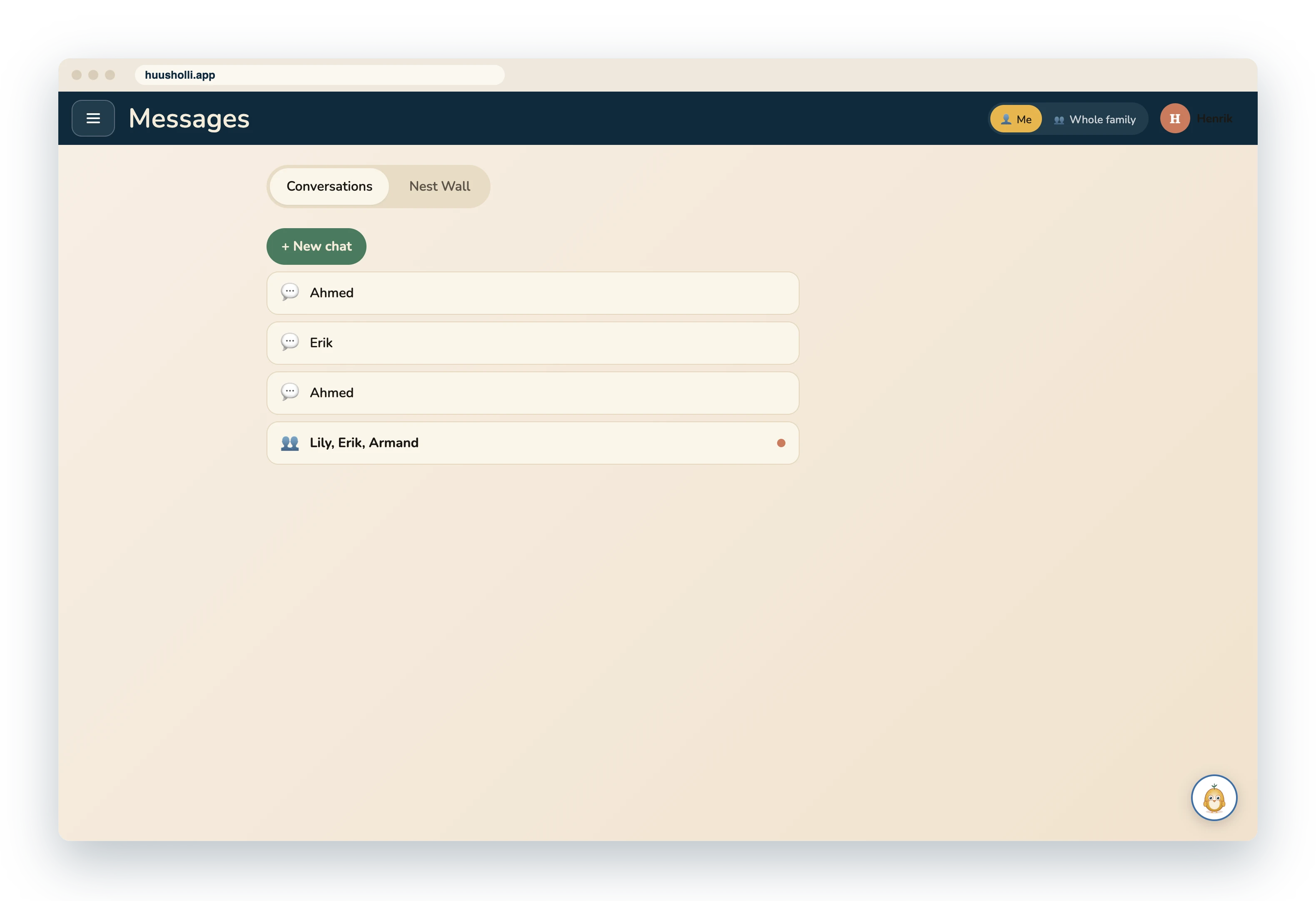
Messages holds one-to-one conversations between family members and the whole family's shared Nest Wall. A message can be written or spoken as a voice message. For the youngest, messages are large cards whose speaker button reads the text aloud.
An adult's messages
A child's messages
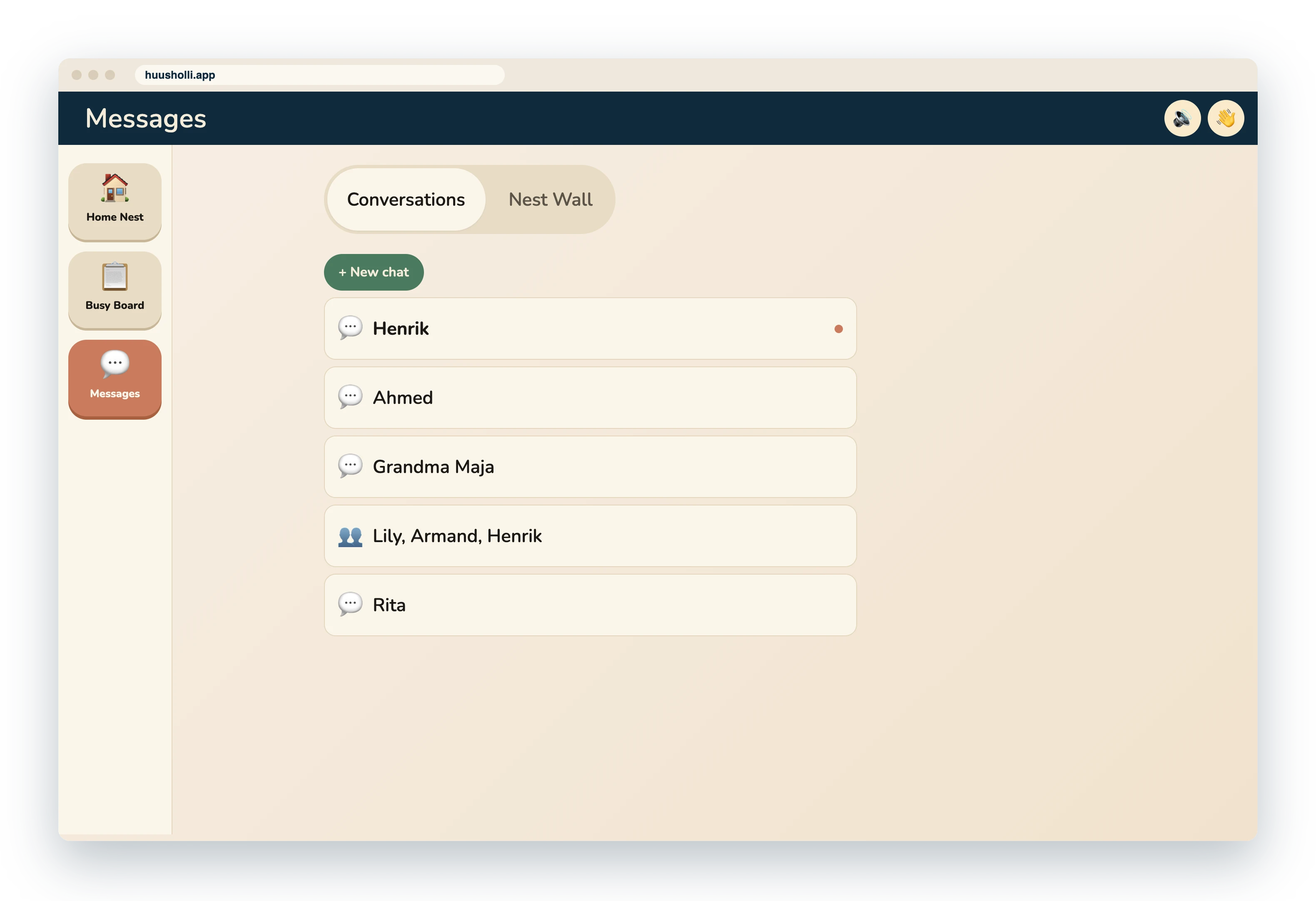
- Asking for help. When a child asks for help from a chore card, the message goes to the adult who helps that chore's doer, and the message has a link to the chore.
- Show a grown-up. A child's conversations are the child's own. An adult sees a message sent to the child only when the child presses Show a grown-up.
- Retention. The parent admin can choose that old messages are deleted automatically after a chosen time.
Tilu
Tilu's button is on every page. Tilu tells you what you can do in the view or form that is open, and reads the help aloud. The help is the same for every family: Tilu does not read the family's data, and nothing is sent anywhere.
Languages and speech
Huusholli speaks eleven languages: English, Finnish, Swedish, Norwegian, German, Dutch, French, Spanish, Portuguese, Italian and Polish. The language is chosen for each family member, so on the same device everyone sees their own language. The speech function reads cards, messages and Tilu's help aloud with the browser's own voice.
Devices and identification
A device is either a personal device, which remembers one user, or a shared device, where everyone picks themselves from a picture. The parent admin always has a passcode, for others it is optional, and the youngest gets a picture password. A shared device returns to the user choice after five minutes without use. Forget device removes the family's data from the device. Read more about privacy, identification and managing the family.
Updated