
The family's home nest
Family life, together.
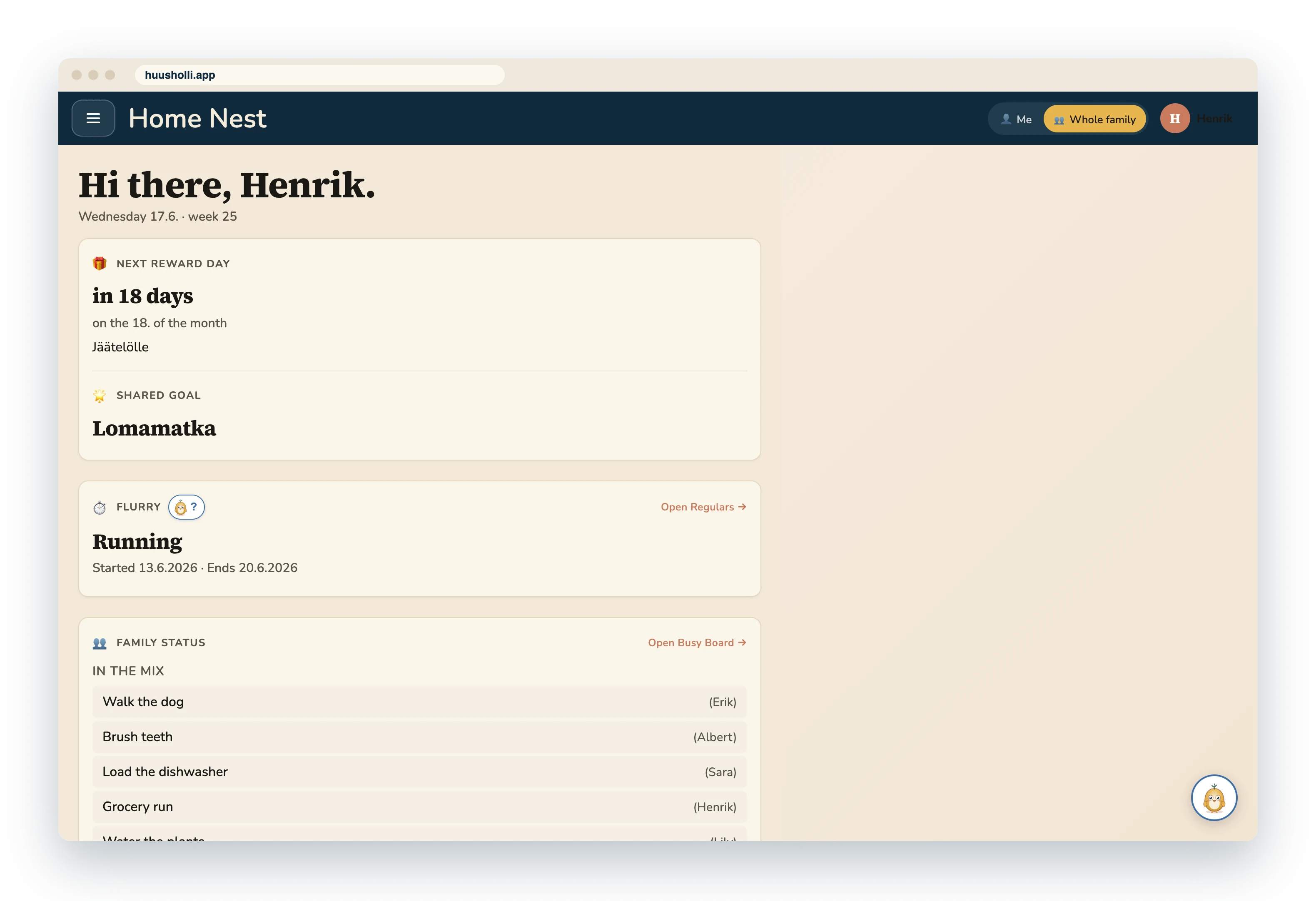
Huusholli brings chores, the week's plans and family messages into one place. Everyone sees their own things their own way: the youngest as pictures, read aloud.
Ask for a test family invite How Huusholli works
- Closed testing
- In the browser, also on the phone's home screen
- 11 languages


Three reading levels
One board, three ways to see it
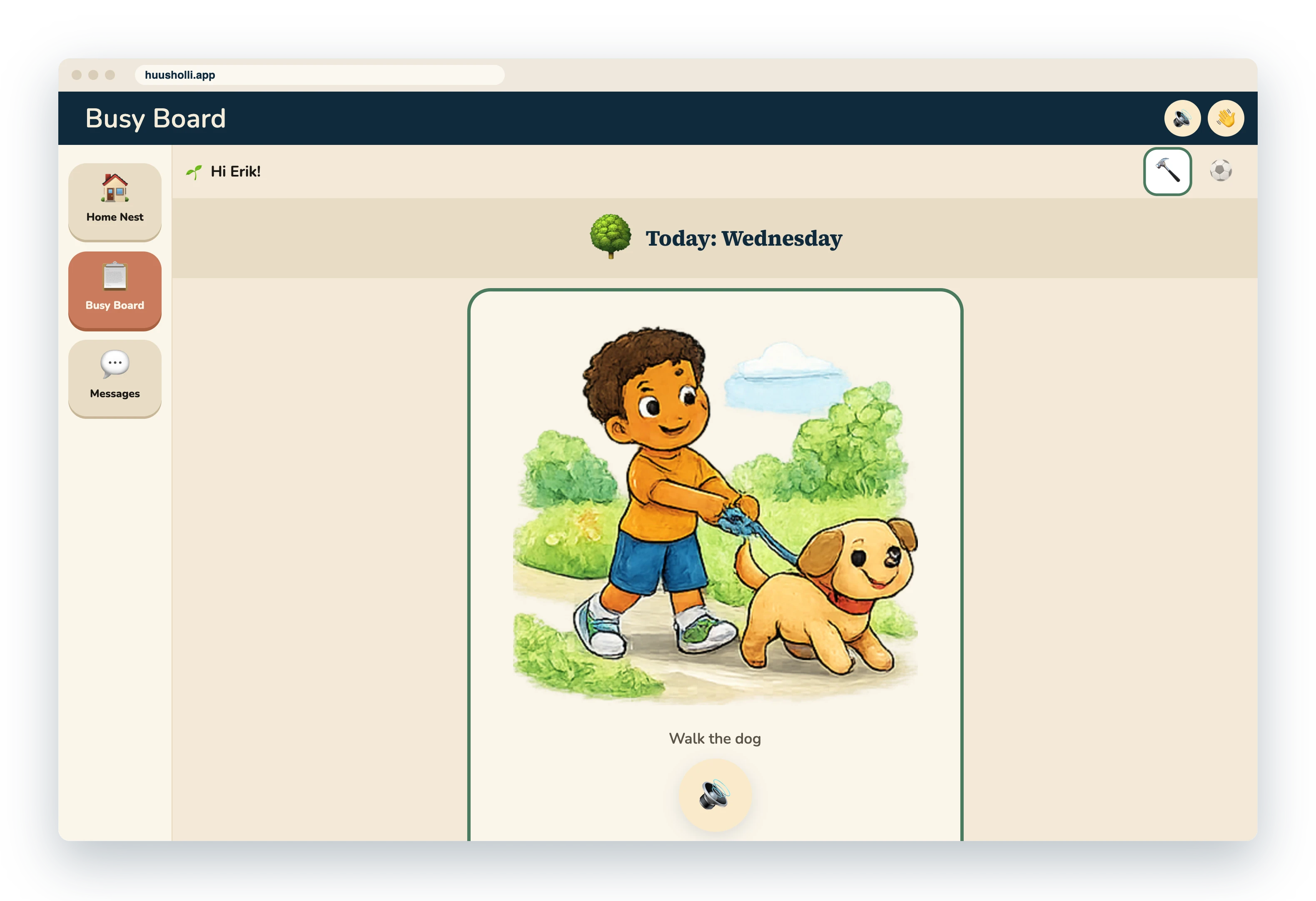
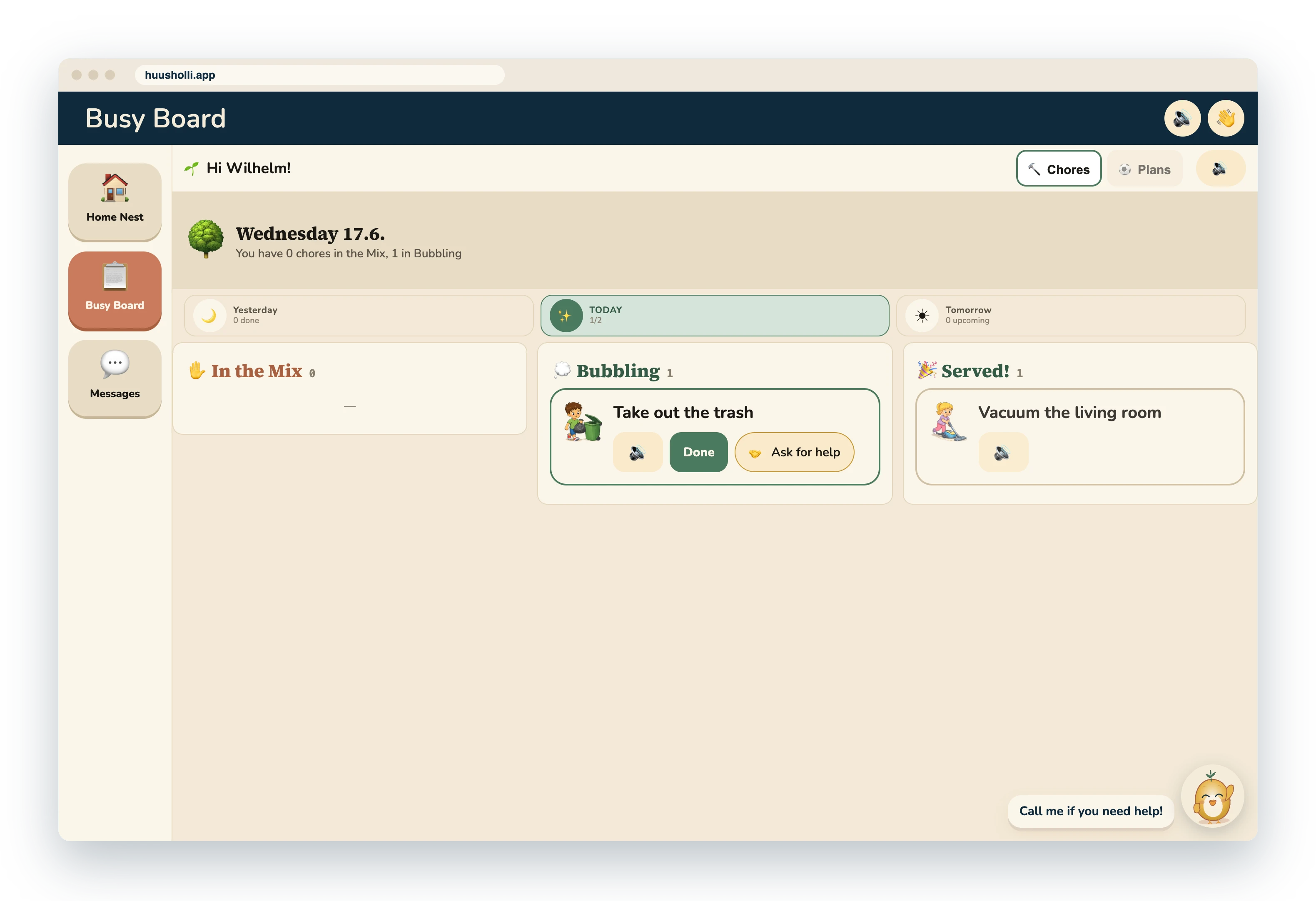
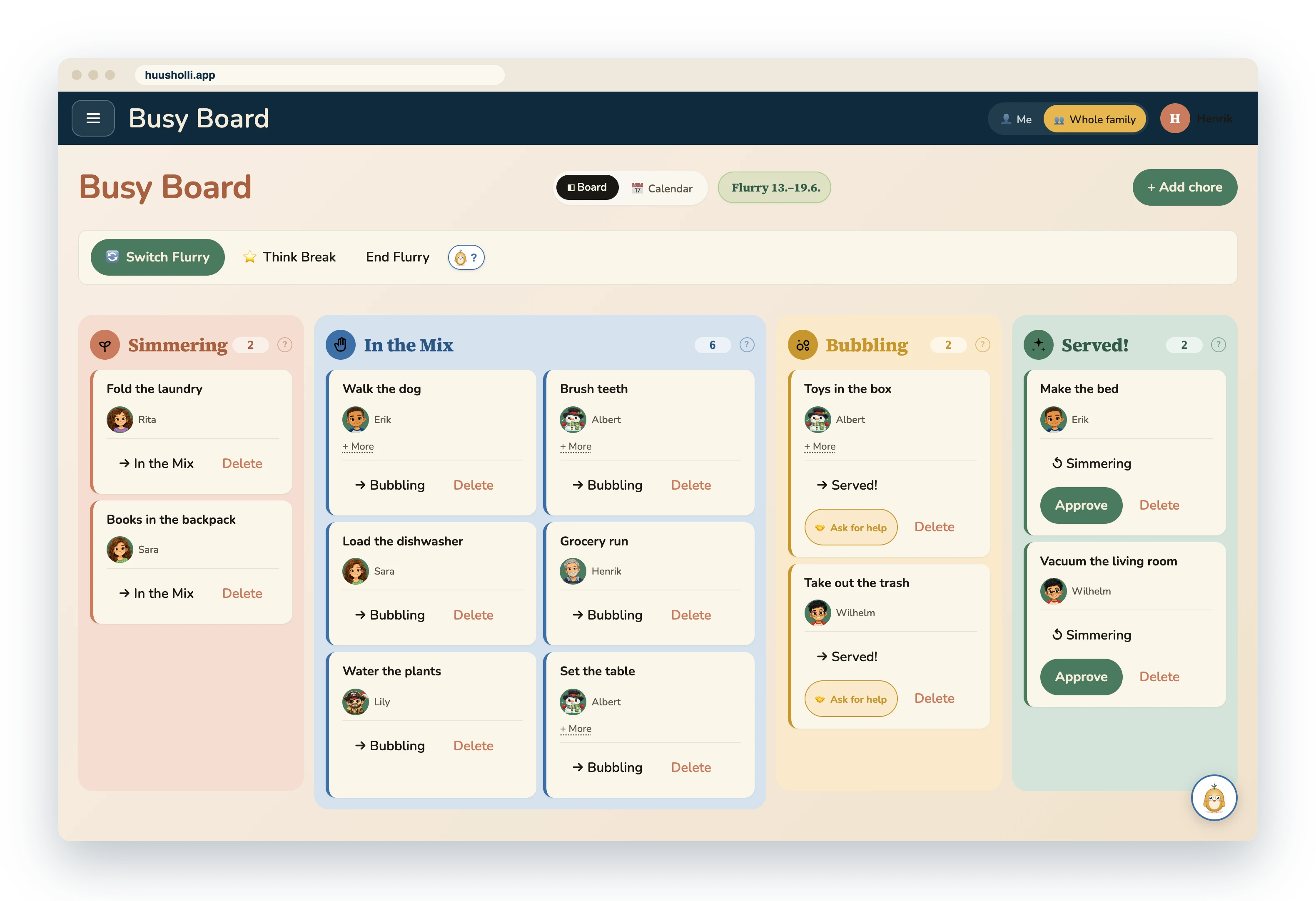
An adult sees the whole family. A reading child sees their own chores as a clear list. The youngest sees picture cards and hears what they say. The reading level is chosen for each family member, and the same family looks right to each of them.
For adults: the whole family at a glance
For a reading child: own chores, own pace
For the youngest: big pictures and talking buttons
Tilu reads the chore aloud. The child does not need to be able to read.
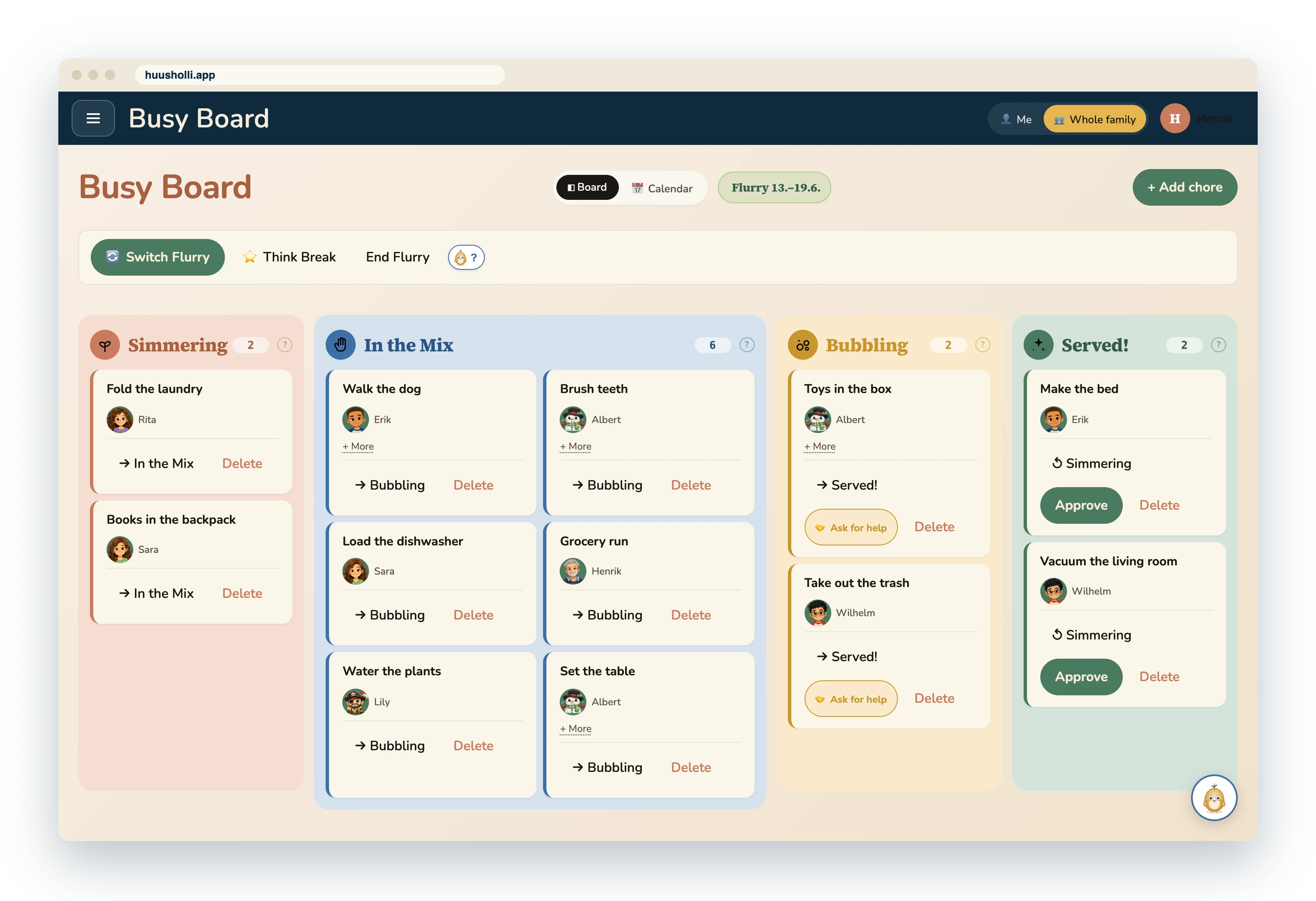
The Busy Board: chores made visible
Chores move across the board from column to column: Simmering ones wait their turn, In the Mix is meant to be done now, Bubbling has been started and Served is done. A child moves their own card forward, and the whole family sees it.
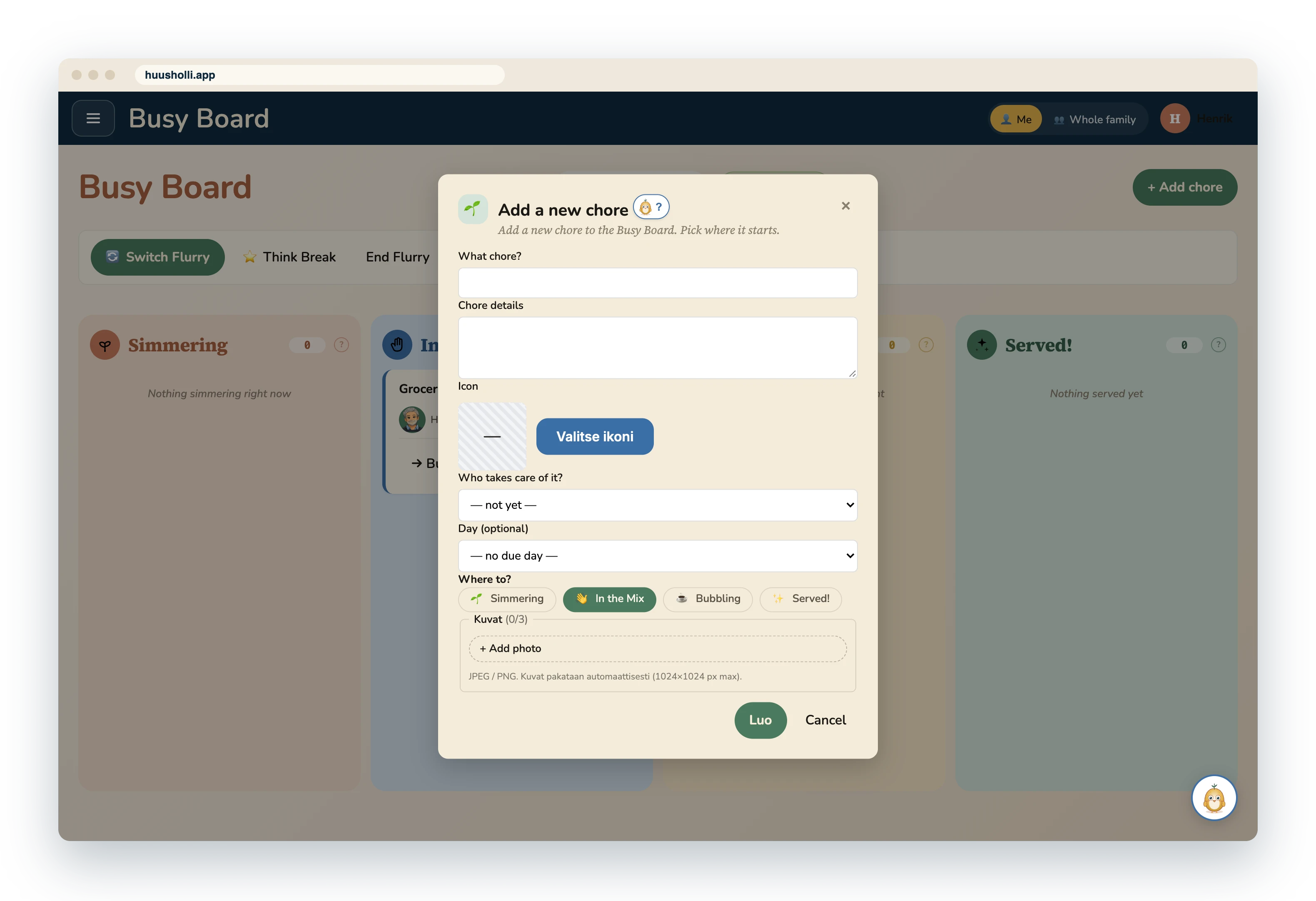
- Add a chore, pick who does it and when, or leave that for later.
- Every card has its own picture that even the youngest recognises.
- Roles show as colours, not as text.
The calendar alongside the Busy Board
The calendar is the Busy Board's other view: on the same page you switch between Board and Calendar. The calendar shows the week's chores and plans by member.
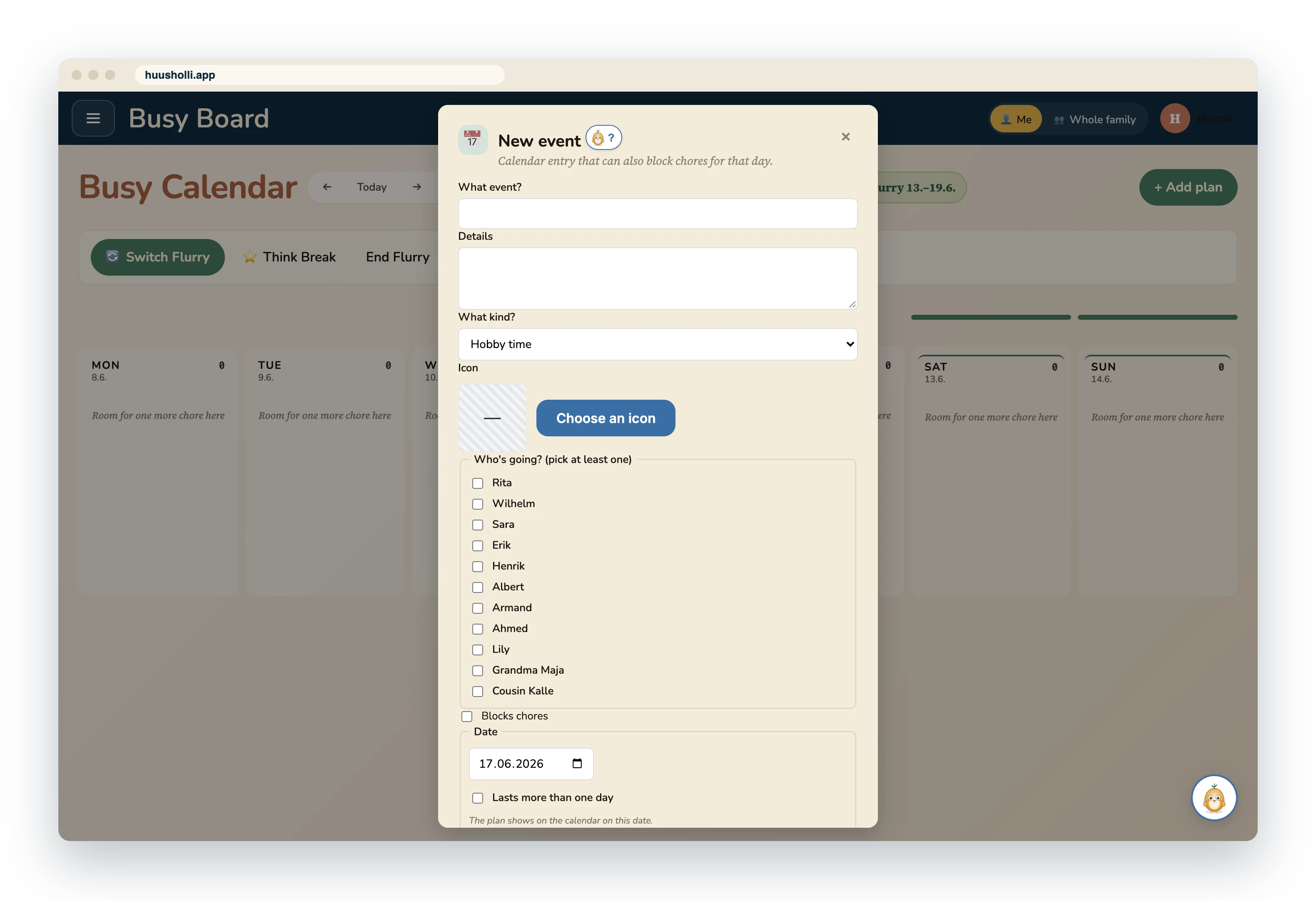
Plans are calendar entries that are not chores: hobby time, a work errand, a sick day, a reward day, the family huddle, grown-up stuff or something else. Hobby time, work errands and sick days block turns for that day, so chores are shared among those who are around. A plan has a picture too, one the youngest recognises.
The week's chores and plans
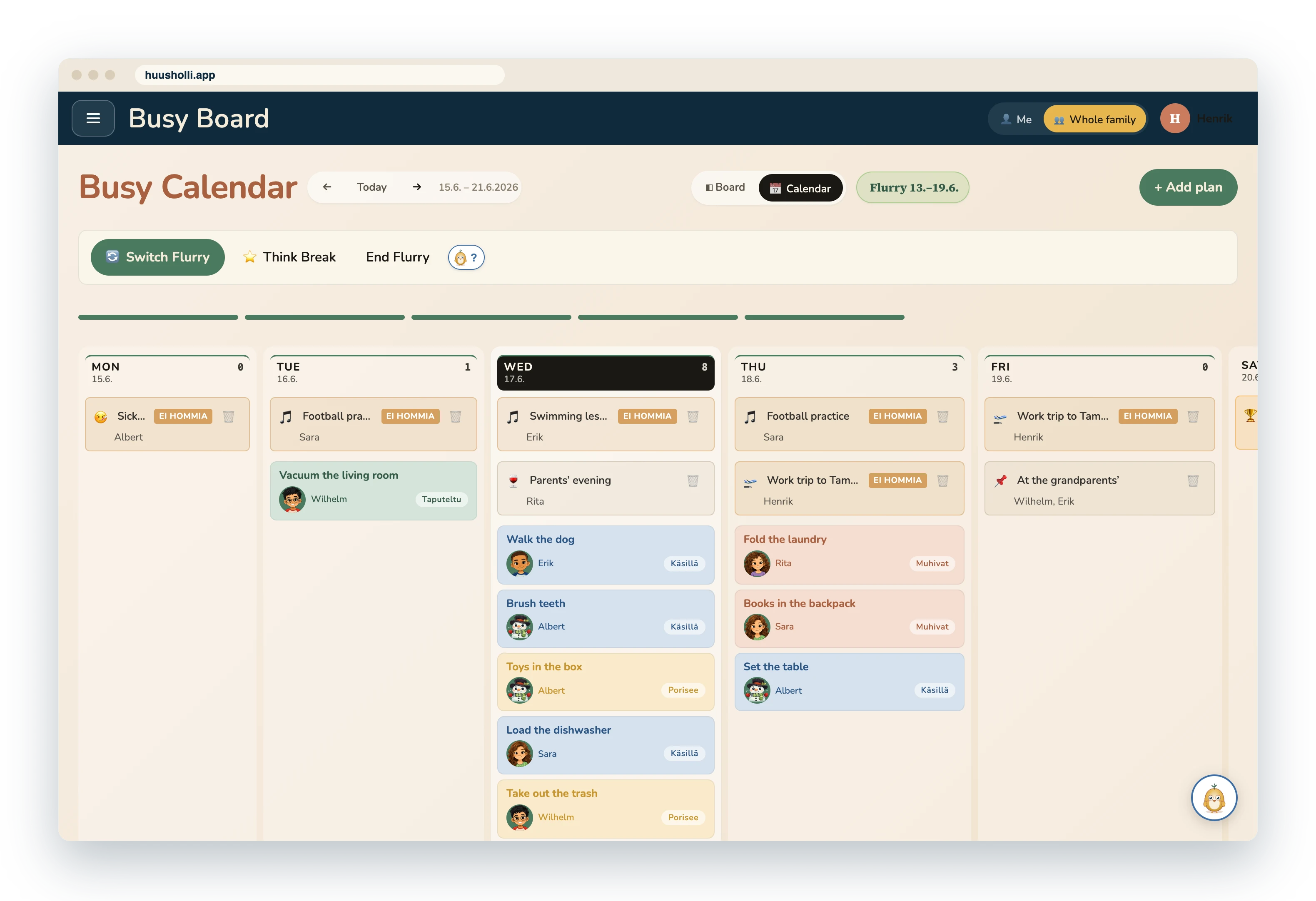
Adding a new plan
The Flurry: the week's chores shared fairly
A Flurry is the family's shared period, usually a week. Chores are shared out evenly, and at the end of the period there is a reward the family agreed on: a day out, a film night or minigolf. It ends with a Think Break: what went well, what to do differently next time.
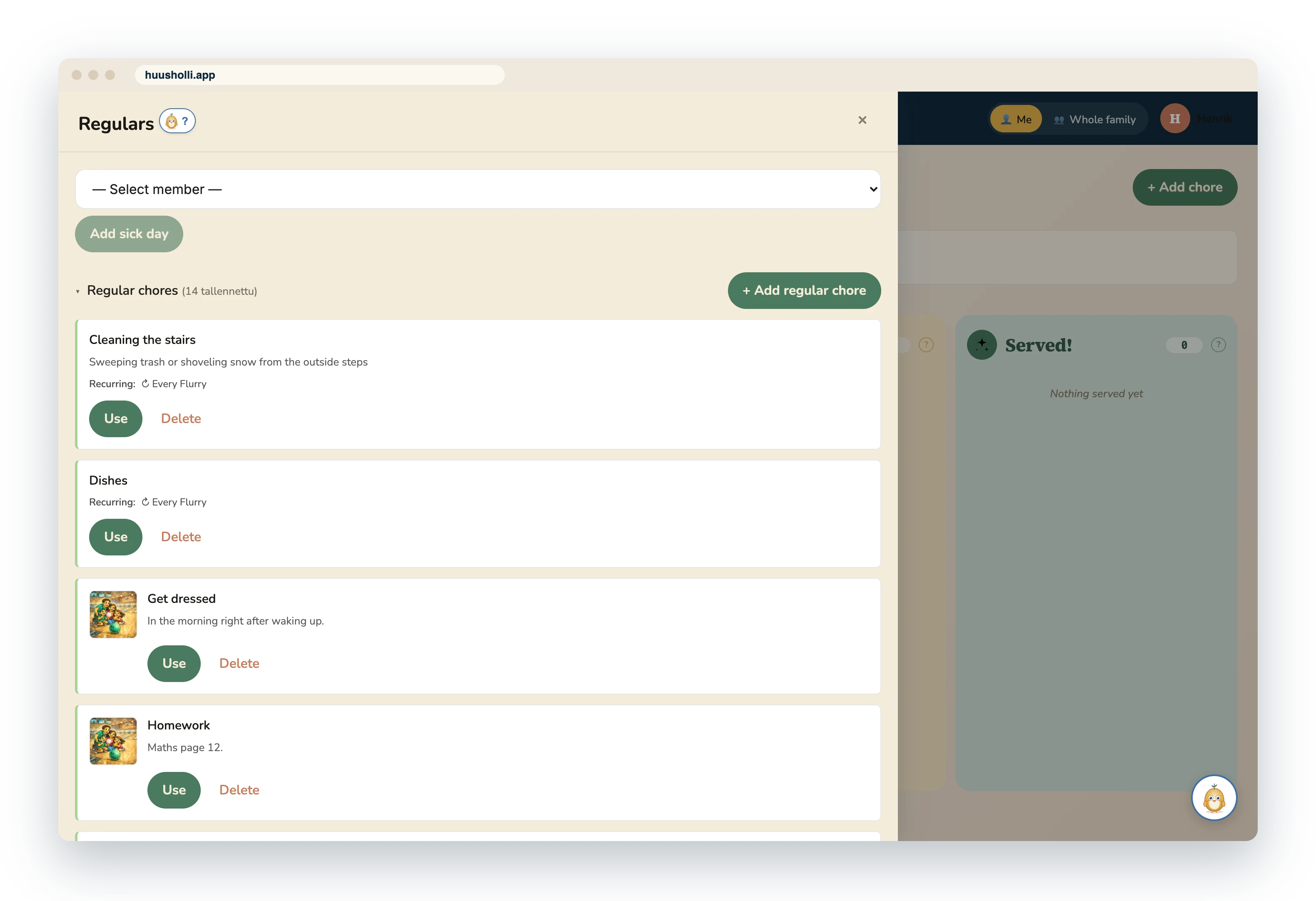
Set once, always along
Chores and plans that repeat every week are saved as Regulars. A new Flurry is built from them ready-made, so the week does not start from scratch.
The family's own messages
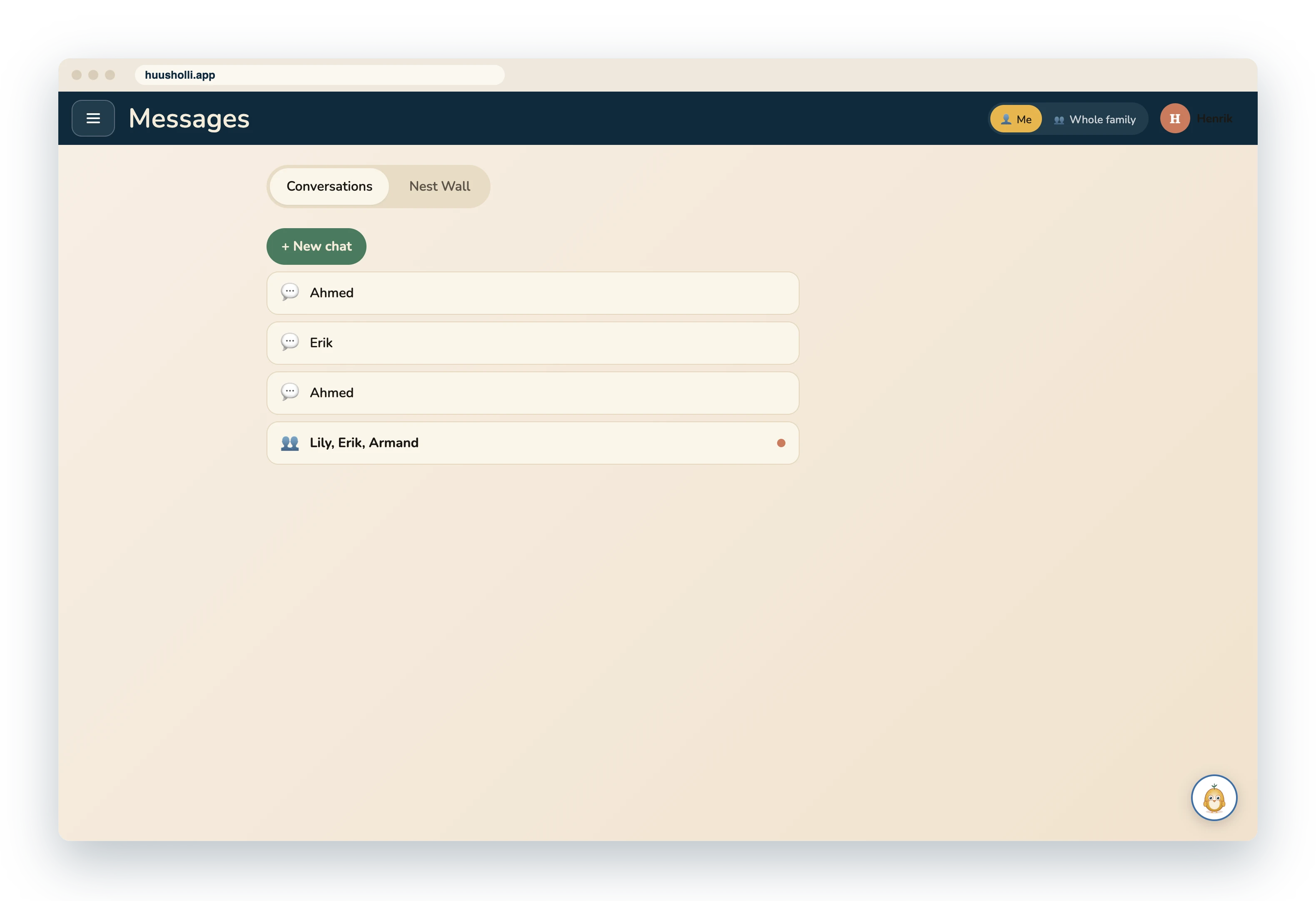
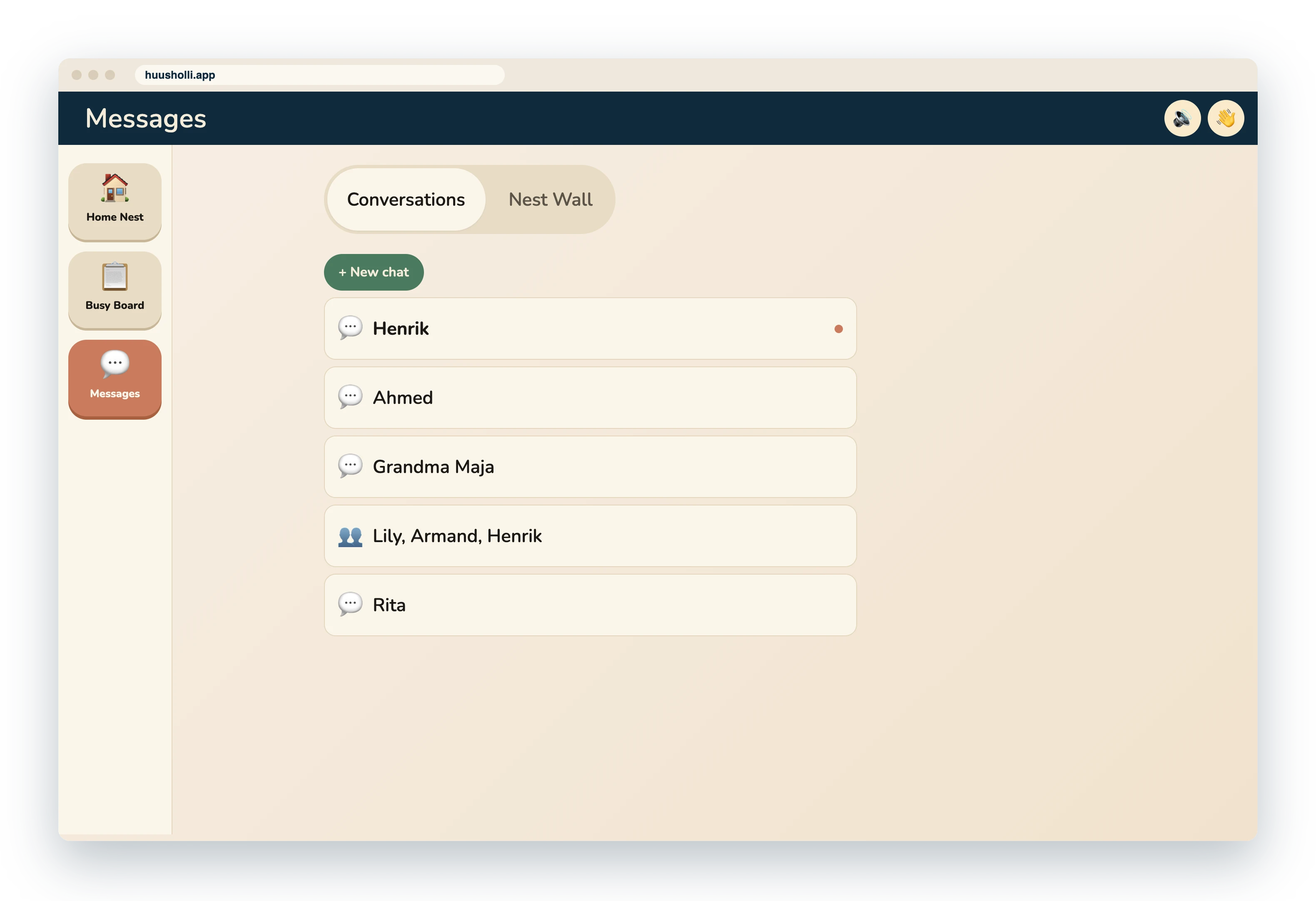
Conversations within the family and a shared Nest Wall. A child can ask for help straight from a chore card, and the message goes to the adult who is needed. A child's messages stay the child's own: an adult sees them only when the child presses Show a grown-up.
An adult's messages
A child's messages
Tilu helps right where you are
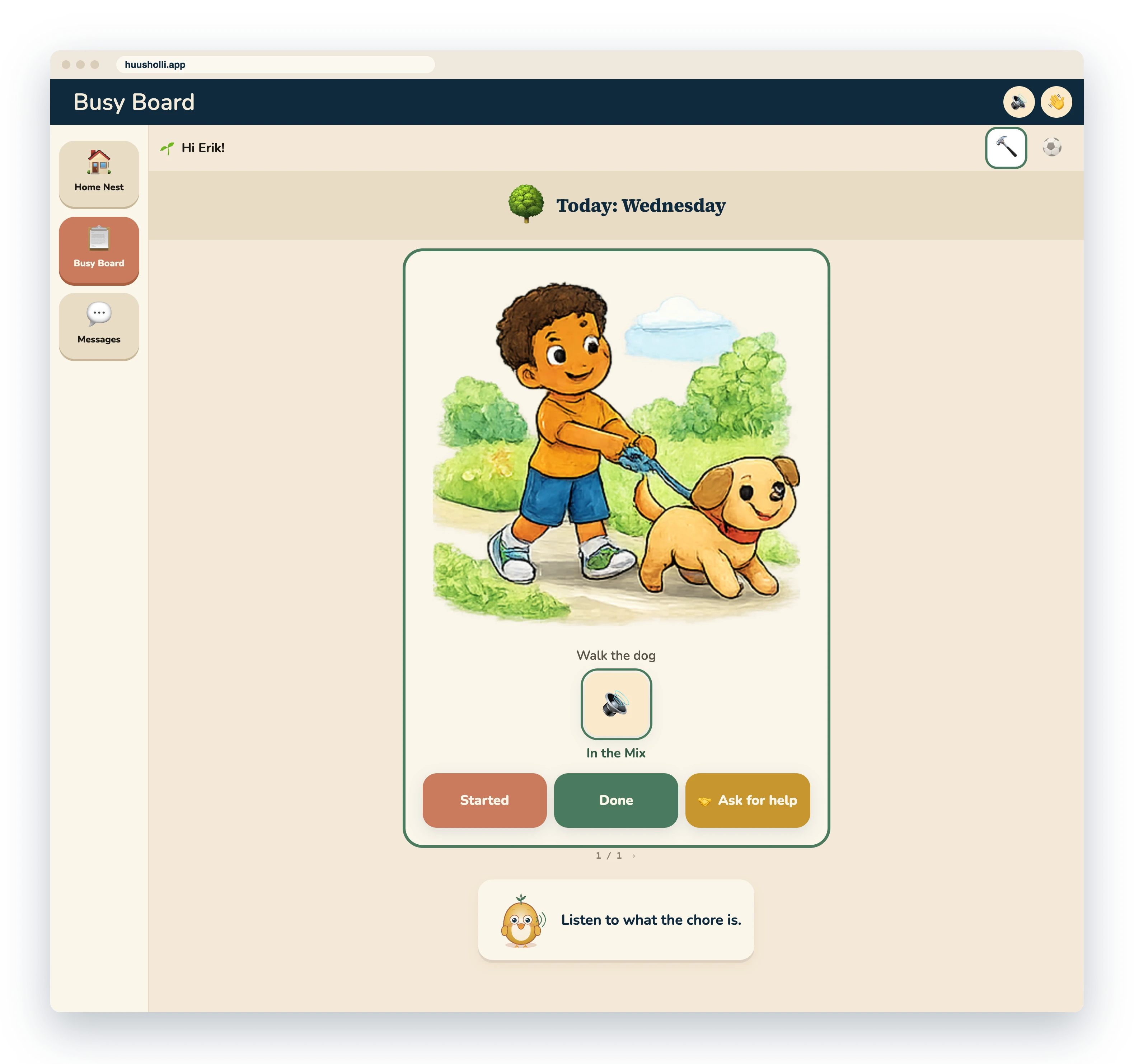
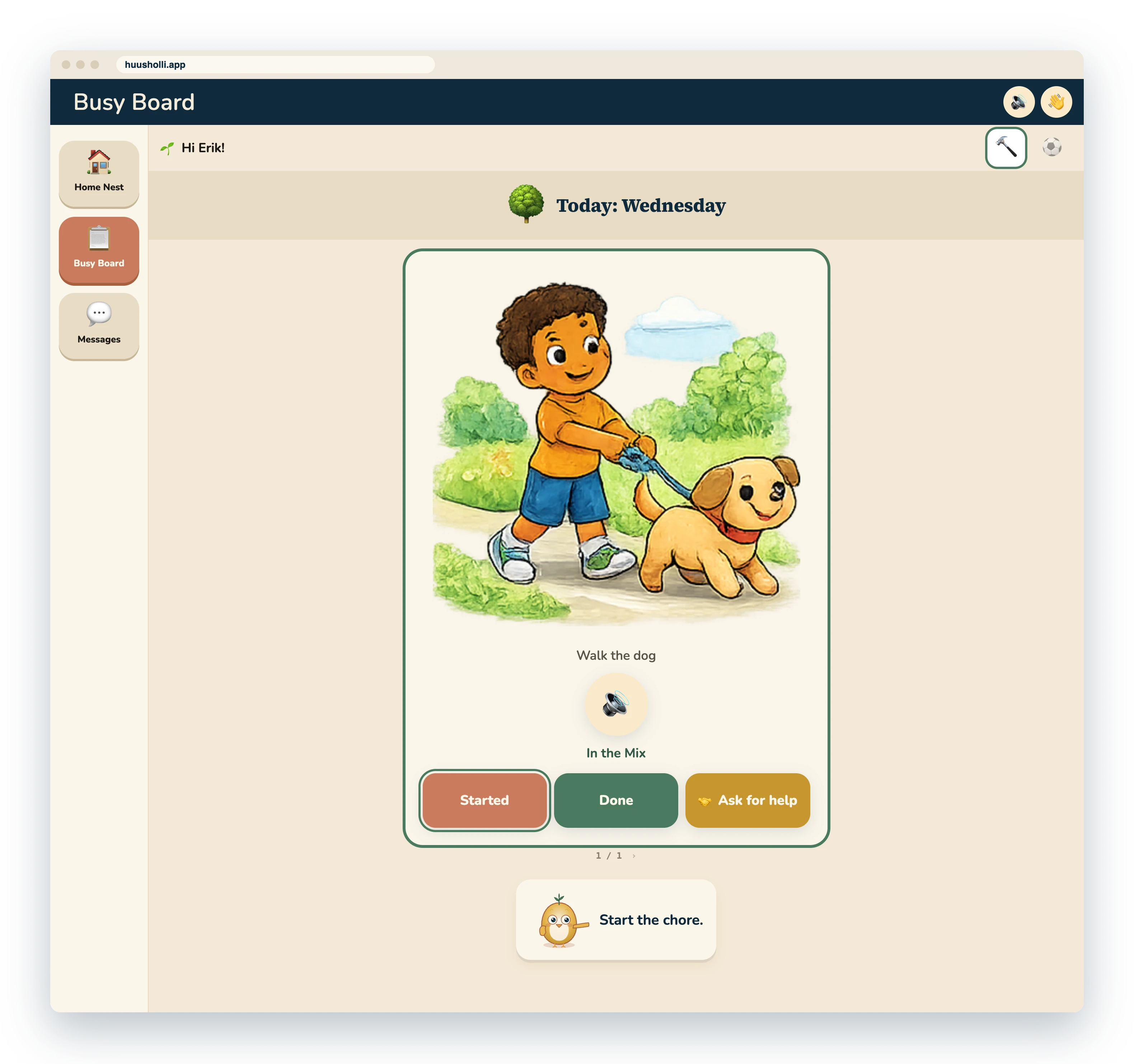
Huusholli's own helper Tilu tells you what you can do in the view you are in. For the youngest, Tilu reads the instructions aloud. Tilu does not read the family's data: its advice is the same for everyone, and it is written separately for each language.
Tilu guides the youngest one step at a time
On the child's board Tilu shows what to do next and says it aloud: listen to the chore, start it, mark it done. The child does not need to be able to read.
Several languages in one family
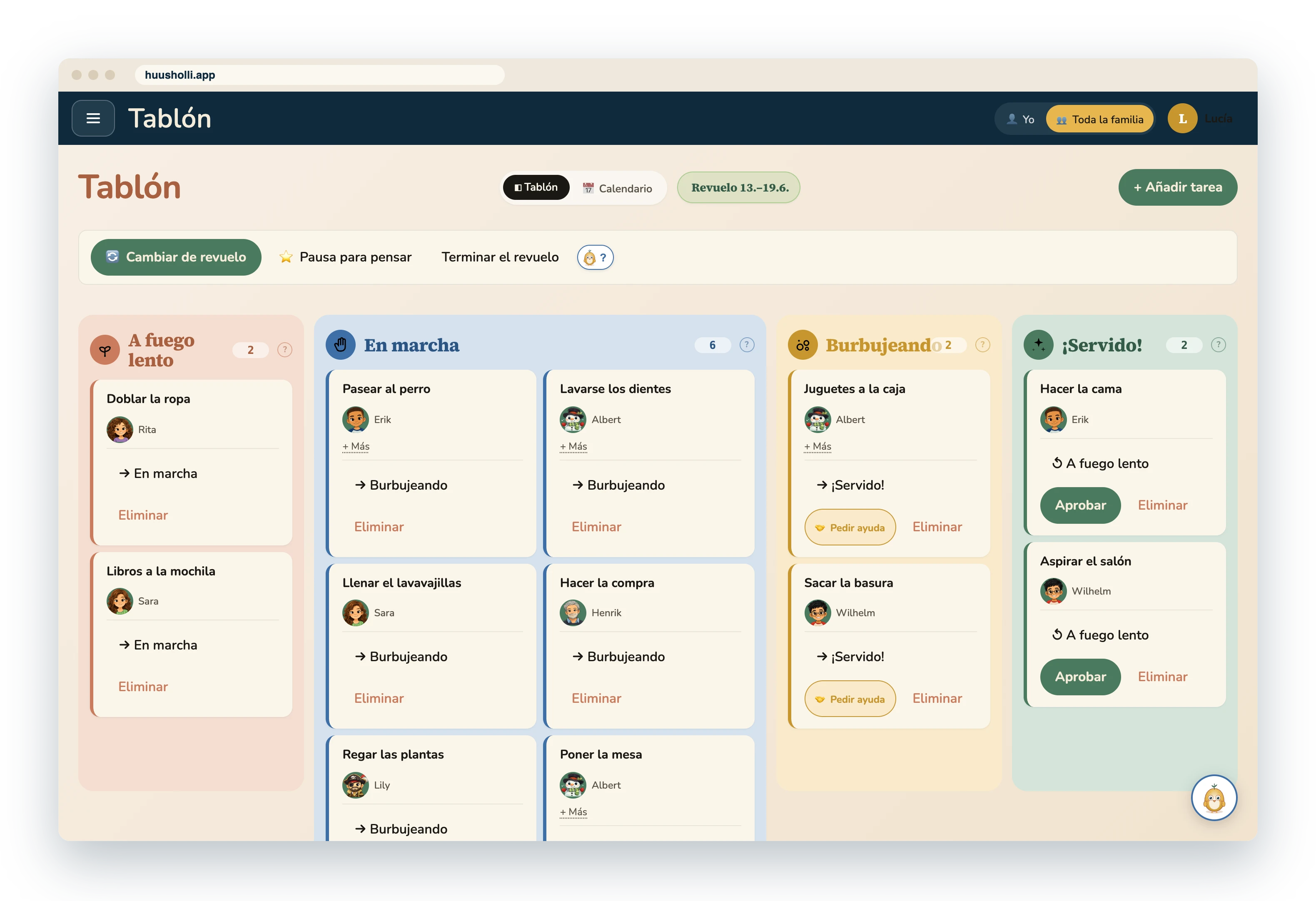
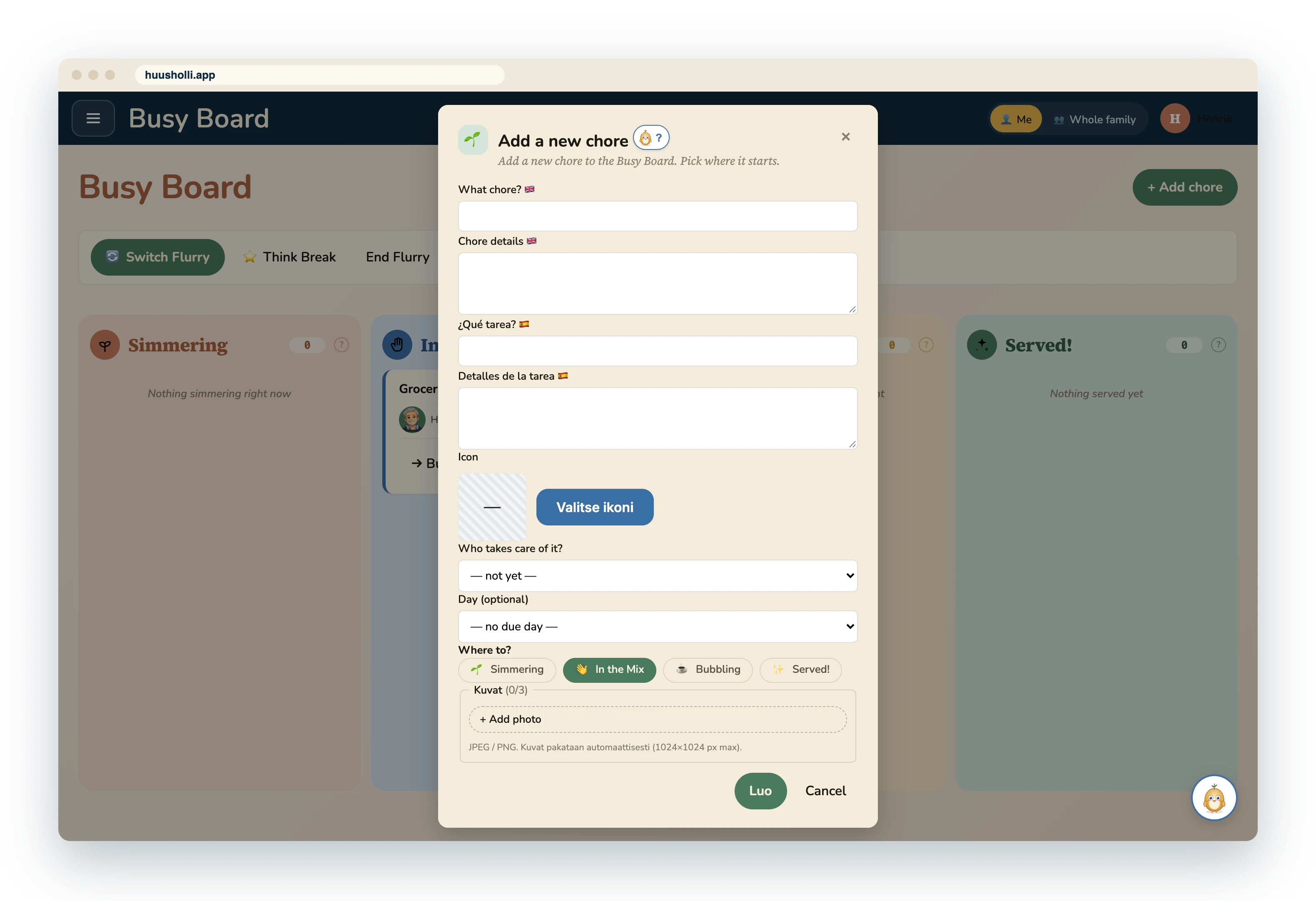
Every family member picks their own language, and a chore's name is written in each of the family's languages. When the family has, say, a Spanish-speaking au pair, she sees the same board in Spanish, and an adult fills in the chore's name in two languages.
The au pair's Busy Board in Spanish
Adding a chore in two languages
Speaks your language
English, Finnish, Swedish, Norwegian, German, Dutch, French, Spanish, Portuguese, Italian and Polish. Every family member picks their own language, spoken too. Names like the Busy Board and the Flurry are written in each language's own words, not translated word for word.
The family's data belongs to the family
Chores, plans, messages and names are stored encrypted so that even we cannot see them. The family's key stays with you. No ads, no selling of data. How privacy and identification work.
On the computer, the tablet and the phone
Huusholli works in the browser and installs on a phone's or tablet's home screen like an app. The same family, the same data, on every device. On a shared device, such as the kitchen tablet, each person picks themselves from a picture, and a personal device remembers its user.
Questions
Can CoreContent see our family's data?
No. The family's name, members' names, chores, plans and messages are encrypted on the device with the family's key before they leave for the server. The server stores encrypted packages it cannot open.
What happens if the family's key is lost?
The family's key is shown once, when the family is created, and it must be saved. It restores the family on a new device and changes the parent admin's passcode. It cannot be requested from us, because we do not have it.
Is Huusholli suitable for a child who cannot read yet?
Yes. In the youngest child's view chores are large picture cards, a speaker button reads the text aloud, and the child's own picture password is three pictures, not letters or numbers.
Do I need an app from an app store?
No. Huusholli works in the browser and can be added to a phone's or tablet's home screen, where it opens like an app. The app store apps are in testing.
What does it cost?
Huusholli is in closed testing and cannot be bought yet. In trial mode a family has five Flurries to use.
Join as a test family
Huusholli is used by invited test families, and we are looking for more families with children aged 3 to 10. Public launch later.
The invite form will be added here.