How Raami works
Raami keeps your browser on your work for a time you choose. Your AI assistant sets up the work, and the Chrome extension keeps you on it. Everything runs on your computer.
Four concepts
- Session
- The time window you choose, during which nothing interrupts your focus. A session ends when its time is up. You can extend it but not shorten it.
- Task
- A piece of work with a name, a goal and its own allowed pages. A task is kept, so you can continue it later, and during a session you can switch between tasks.
- Block
- Only the task's own pages open. Suits work whose sources you know in advance: writing, coding and meetings.
- Observe
- Everything opens except social media, news, entertainment, games and shopping. If you linger on an unfamiliar page, Raami asks whether it belongs to your work. Suits searching and research.
The assistant sets up the work
You create tasks in conversation with your AI assistant, or yourself on the Tasks page (below). The assistant picks block or observe for each task, writes the keywords that pages are compared against, and adds the pages it finds or recommends as the task's sources, each with a note on why. When you continue a task later, it remembers the goal, the sources and where you left off.
The assistant also pushes back. A break, entertainment or open-ended browsing is not a task, and it won't create one. If you ask for something outside the active task, it asks whether this is new work instead of quietly widening the task.
You don't need to learn commands for any of this. Tell the assistant in your own words, for example:
- “Search results are work in this task.”
- “Recipes don't belong here.” Useful when a search term has several meanings.
- “Add video editing as a keyword.”
- “Switch this task to observe mode.”
- “Make a task like task 12.” The new task copies the goal, mode, keywords and sources.
Without an assistant: the Tasks page
The Tasks link at the top of the Today view opens a page where you create and edit tasks yourself. Press New task and fill in the form: name, goal, mode, sources one per line (a site, a path or an address), for observe mode the keywords and what doesn't belong to the task, and if you like a length for today's plan. A broad platform such as YouTube, Reddit or Google can't be a source: in observe mode it is watched, and in block mode it stays closed.
In place of the assistant's pushback, the form has a checklist: is this work, does every source serve the goal, and is the time realistic. It doesn't stop anything; it asks. Save leaves the task waiting, and Save and start starts a session or switches tasks during one. Edit opens a task in the same form, and Delete moves it to the trash; the active task can't be deleted during a session. The assistant sees the tasks you make here like its own.
The question over an unfamiliar page
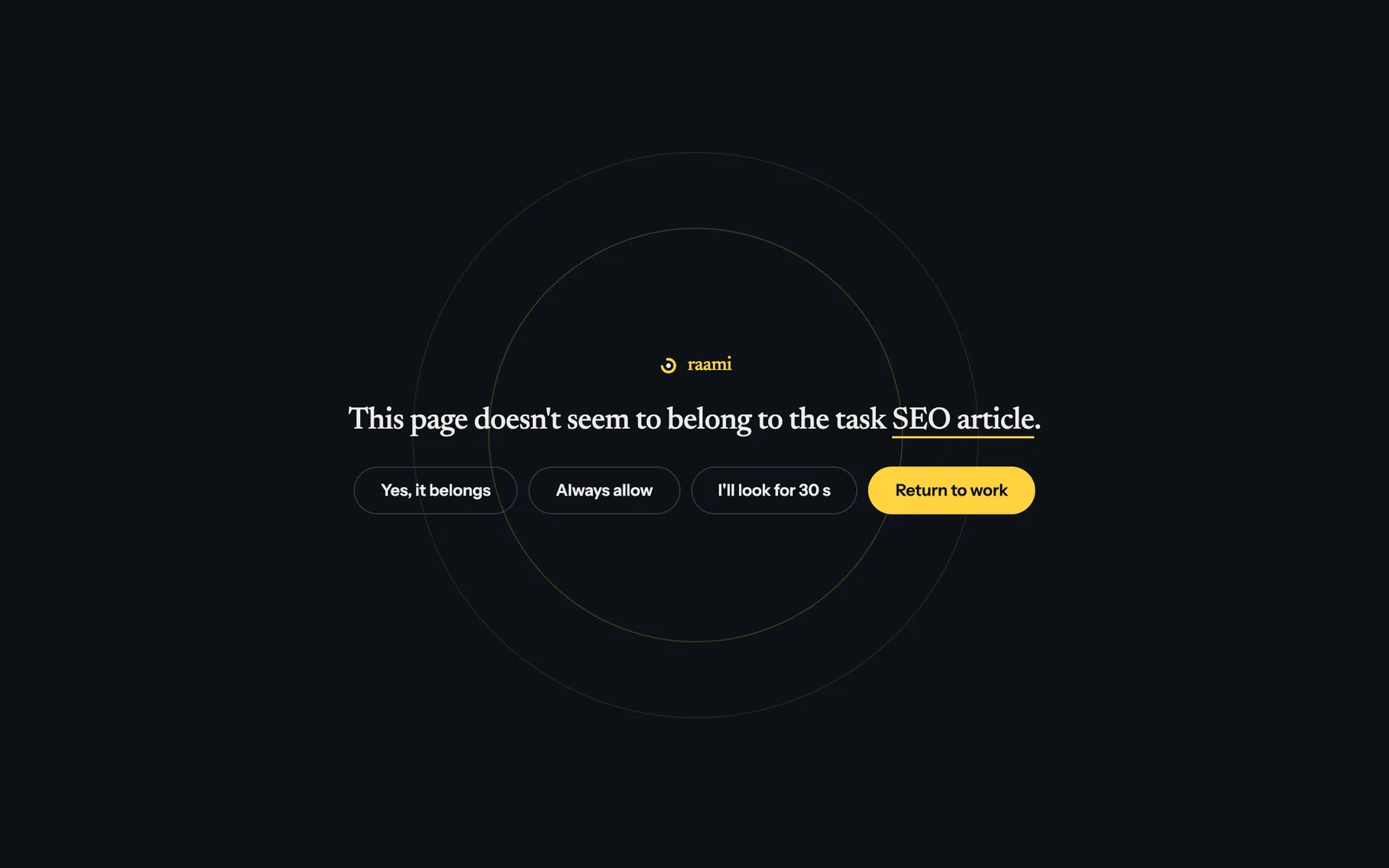
In observe mode, a yellow bar appears over an unfamiliar page after a while. It comes sooner if the page doesn't match the task's keywords, and later if you arrived through a link on a work page or a matching search. Only the time you spend looking at the page counts.
- Yes, it belongs adds the page to the task, and you won't be asked about it again. From YouTube and other large platforms, only that video or page is added.
- Always allow allows the site in every task.
- I'll look for 30 s gives you a little more time.
- Return to work takes you back to your previous work page. If you opened the page in a new tab, the tab closes and the previous one comes forward.
If you don't answer, the bar covers the page after a couple of minutes. Your answers teach Raami what belongs to the task.
Search pages, feeds, YouTube and Reddit
On a search page, every result carries its relevance score to the task: yellow is on the task's side, grey is not. If the search doesn't fit the task, the bar offers Belongs to the task, I'll look for 30 s and Back to search. On the front pages and feeds of social and video sites, search and content stay open, but the feed doesn't belong to the task. On YouTube, recommendations, comments and Shorts are hidden during a session, and autoplay is off. You reach videos through search, playlists or channels. More on YouTube during a session.
On Reddit, the home feed is emptied, r/popular and r/all are closed and the sidebar of recommended communities is hidden. Communities, discussions and search stay, and a discussion keeps its comments. More on Reddit during a session.
Block mode
In block mode, a page that doesn't belong to the task opens the blocked page instead. It names the task and its goal and tells you when filtering ends. Back to work returns to the previous page. If the page belongs to your work, ask the assistant to allow it and click Check again.
Your own lists and scheduled sessions
Three lists in Settings apply to every task:
- Always allow: sites that belong to every task, such as your own tools.
- Allow while observing: blocklisted sites you need for work, such as YouTube for product research. The question and the time limit stay in force.
- My blocks: sites you want to block for yourself in observe mode, on top of the general blocklist.
Each list can exist as several named lists, for example blocks for editing and for SEO work. You take a list into use from Settings or by telling the assistant “use my editing list”.
A scheduled session starts by itself on the weekdays and hours you choose, if no session is running. It continues with the first unfinished task of today's plan, with the task that was open last, or with a default task you choose.

When time is up
The browser opens again, and so does the Allowlist source switch on the settings page: it is locked during a session, because changing it would bypass filtering. If the work lasted more than ten minutes, the assistant asks for a short handoff note: what was done and what comes next. It is optional. When you continue the task later, the assistant shows the note, the sources and the time spent. A recurring task needs no ending: the same task continues next time, and its context grows with your answers.
A typical day
- In the morning, ask your assistant to plan the day. It proposes the tasks, and you approve them.
- Start the first task from the Raami icon.
- Work. Answer the questions, and if a work page is blocked, ask the assistant to allow it.
- Switch tasks from the icon with Continue.
- When time is up, record a handoff note if you like, and start the next task or let the schedule continue tomorrow.
Everything stays on your computer
Raami is a local service and a Chrome extension. Your tasks, sources and browsing data stay on your computer, and nothing is sent anywhere without your separate consent. The optional model that scores how close a page is to the task runs locally too. Even a bug report includes addresses and search terms only if you agree.