Python Development Environment Setup on Windows 11
This article teaches you how to install Python, configure environment variables, and utilize powerful tools like VS Code and pip.
1. What is Python?
Python is a powerful, high-level programming language known for its simplicity, readability, and versatility. Created by Guido van Rossum in the early 1990s, Python has become one of the most popular programming languages in the world. It is widely used for web development, data analysis, artificial intelligence (AI), machine learning, automation, and scientific computing.
Unlike many other languages, Python emphasizes code readability and clean syntax, allowing developers to express complex ideas with fewer lines of code. This makes it an excellent choice for both beginners and experienced programmers.
2. Download Installation Package
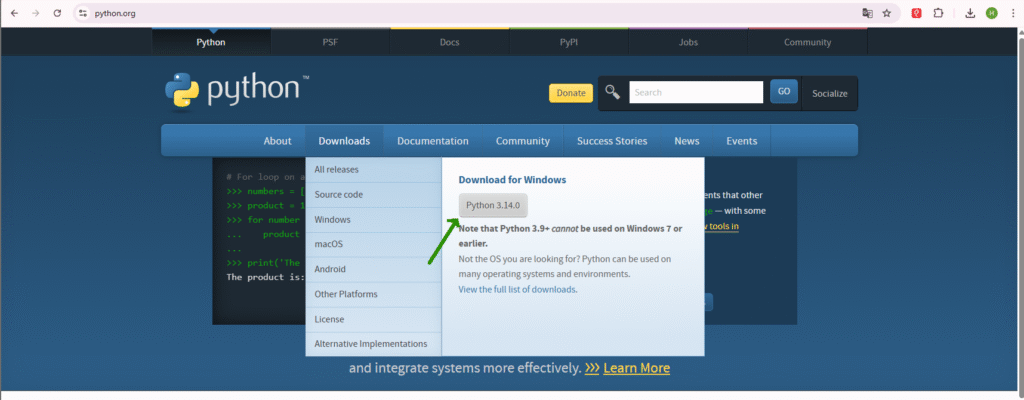
Download the latest Python installer from [python.org](https://www.python.org/). On the page, select Download so the newest version is available.
3. Install Python
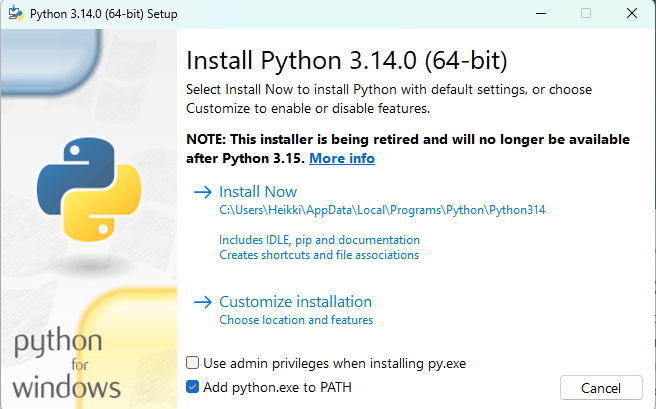
– Run the installer and remember to check “Add python.exe to PATH” before clicking Install.Now
4. Verify installation
To ensure that Python has been installed correctly, you can check the version using the following command in the Command Prompt:
|
1 |
python --version |
If installed properly, this command will display the version of Python that is installed. This verification step is crucial for confirming that your development environment is set up correctly and ready for use.
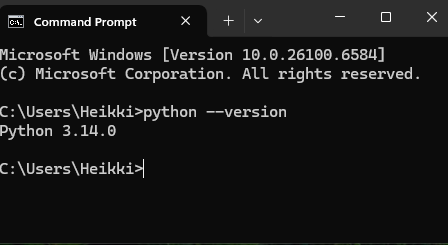
If you see a version number, Python is installed.
5. Pip Installation
Pip, the package installer for Python, is included by default in Python versions 3.4 and above. Pip allows you to manage Python packages efficiently.
To check if PIP is installed, run the following command in Command Prompt:
|
1 |
pip --version |
If Pip is not installed, installation instructions are provided at https://pip.pypa.io/en/stable/installation/
6. Visual Studio Code
Visual Studio Code (VS Code) is a powerful and versatile code editor that significantly enhances the Python development experience on Windows 11. With features like IntelliSense, debugging support, and an integrated terminal, it not only streamlines coding tasks but also boosts productivity. While VS Code is highly recommended, developers can also opt for alternative editors such as Notepad++, which offers basic functionality for Python scripting. However, for more advanced features and tools, VS Code stands out as the preferred choice for a robust development environment.
To get started with VS Code, download it from the official website https://code.visualstudio.com/download and follow the installation prompts. Once installed, you can enhance your Python environment by adding the Python extension, which provides rich support for Python development, including linting, formatting, and code navigation. Additionally, ensure that the Python interpreter is configured correctly in VS Code settings to leverage the editor’s capabilities for your projects fully.
7. Visual Studio Code Extension
To further enhance your Python development environment in Visual Studio Code, consider installing the Jupyter extension for interactive notebook support, which is essential for data analysis and visualization tasks. The Pylance extension significantly boosts performance with fast IntelliSense and type checking, improving code quality and reducing errors. For version control, the GitLens extension integrates Git capabilities directly into the editor, streamlining collaboration and code management. To install these extensions, open the Extensions view in VS Code by clicking on the Extensions icon in the Activity Bar, search for the desired extension, and click the Install button.
8. Python Virtual Environment
A Python virtual environment is a self-contained directory that contains a Python installation for a specific version of Python, plus several additional packages. This isolation allows developers to manage dependencies for different projects separately, preventing conflicts between package versions. To create a virtual environment, use the venv module by running
|
1 |
python -m venv |
9. Python Weekly Newsletter
The Python Weekly Newsletter is a valuable Free resource, offering curated articles, tutorials, and news from the Python community. Subscribing to this newsletter ensures you receive the latest insights on best practices, tool updates, and new libraries directly in your inbox, enhancing your development workflow. This resource is particularly beneficial for developers seeking to enhance their knowledge and refine their coding skills.
Leave a Reply